What to Do If You Clicked a Phishing Link: Steps to Take Immediately
Clicked a suspicious link? Learn what to do next based on what happened, including entering a password or verification code, sharing financial or personal information, downloading a file, installing software, or giving remote access.
In this article
- First: Stop and Determine What Happened
- If You Clicked the Link but Entered Nothing
- If You Entered a Username or Password
- If You Entered a One-Time Verification Code
- If You Approved an Unexpected MFA Request
- If You Entered Bank or Credit-Card Information
- If You Entered Your Social Security Number
- If the Phishing Link Downloaded a File
- If You Installed Software or a Browser Extension
- If You Gave Someone Remote Access
- If You Used a Work or School Account
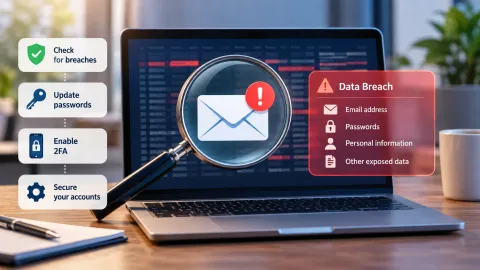
- How to Check Whether Your Account Was Compromised
- Unfamiliar sign-ins
- Unknown devices
- Unexpected security changes
- Unexpected account activity
- What If You're Not Sure What You Entered?
- What Not to Do After Clicking a Phishing Link
- Don't revisit the suspicious website
- Don't enter more information
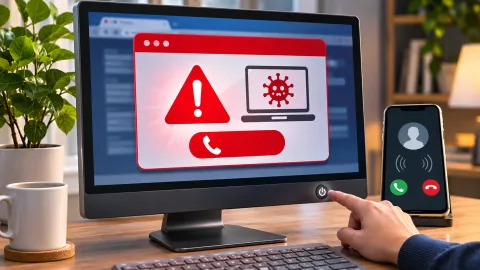
- Don't call the number in a suspicious pop-up
- Don't assume that clicking automatically means you were hacked
- Don't use the suspicious message to recover your account
- How to Report the Phishing Attempt
- How to Prevent the Same Problem Next Time
- A Simple Decision Path to Remember
- Conclusion
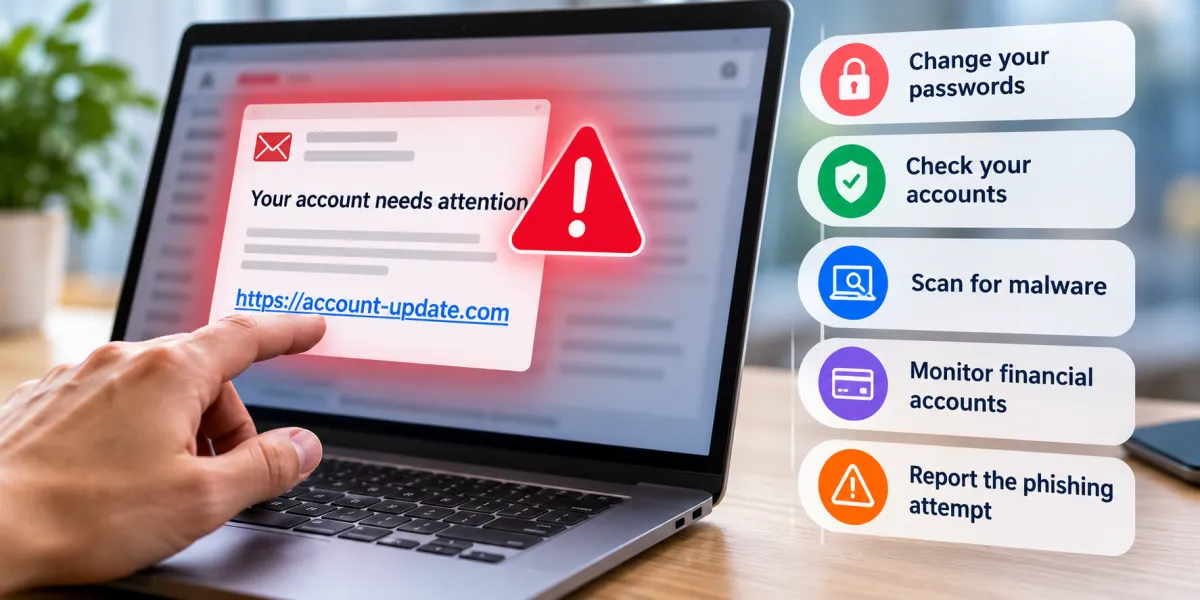
If you clicked a phishing link, don't panic—but don't ignore it either. The right next step depends on what happened after the click. Simply opening a suspicious page is different from entering your password, approving an unexpected MFA request, downloading a file, or giving someone remote access to your device.
The most important thing is to stop interacting with the suspicious message or website and determine what information, access, or files may have been exposed. If you entered credentials, financial information, or sensitive personal information, take action through the legitimate service's official website or app—not through the link you clicked.
This guide walks through the most common situations, from clicking a phishing link without entering anything to more serious cases involving account credentials, verification codes, financial information, malware, or remote access.
First: Stop and Determine What Happened
After clicking a suspicious link, don't go back to the page just to investigate it further. Don't enter additional information, download another file, call a phone number shown in a suspicious pop-up, or use contact information provided in the original message.
Instead, work through these questions:
| What happened after you clicked? | What to do next |
|---|---|
| You opened the page but entered nothing | Close it and check whether anything downloaded |
| You entered a username or password | Change the exposed password through the legitimate service |
| You entered a one-time verification code | Secure the affected account immediately |
| You approved an unexpected MFA request | Review and secure the account immediately |
| You entered bank or card information | Contact the financial institution through a trusted channel |
| You entered your Social Security number | Use official identity-theft recovery guidance |
| A file downloaded | Don't open it; update security software and scan the device |
| You installed software or an extension | Treat the device as potentially compromised and take additional security steps |
| You gave someone remote access | Disconnect the remote session and secure the device and accounts |
| You're not sure what happened | Take the more cautious path and secure potentially affected accounts |
Clicking a phishing link does not automatically prove that your account or device has been compromised. The risk depends on what happened after the click and what information or access may have been exposed.
If You Clicked the Link but Entered Nothing
This is one of the less serious situations, particularly if the page did not download anything and you did not provide information.
Close the suspicious webpage and don't return to it. If the message is still in your inbox or text messages, don't use any links or phone numbers in it.
Then check your device.
Look for anything unexpected that may have downloaded. Depending on your device and browser, a download may appear in the browser's download history or in the device's downloads folder.
If you suspect that a file was downloaded, don't open it. Update your security software and run a security scan. The FTC recommends updating security software and scanning the device when a phishing link may have downloaded harmful software.
If nothing was downloaded and you didn't provide credentials or other sensitive information, you may not need to change every password simply because you clicked a link. Continue to watch for unusual account activity or security alerts, especially if the suspicious page appeared to imitate a service you use.
If You Entered a Username or Password
If you typed your username and password into a phishing website, treat the credentials as exposed.
Do not use the phishing page to change the password. Instead, open the legitimate service using its official website, app, or a bookmark you already trust.
Change the exposed password as soon as possible.
If you reused that password on other websites, change it there too. Reusing the same password can turn one compromised login into access to multiple accounts.
After changing the password:
-
Review recent sign-ins or security activity.
-
Check the list of devices connected to the account.
-
Sign out unfamiliar devices or sessions.
-
Review recovery email addresses and phone numbers.
-
Check whether security settings were changed.
-
Enable multi-factor authentication if available.
-
Watch for unexpected password-reset or login alerts.
For example, Google provides account-security tools that let users review security events and connected devices and take steps to secure an account when suspicious activity is found.
If the compromised password was for an email account, prioritize it. Your email account may be used to reset passwords for other services, so securing email can help prevent a wider account takeover.
For additional protection against certain phishing-based credential attacks, KnowBrook's guide to phishing-resistant authentication with passkeys explains how passkeys differ from traditional passwords and other authentication methods.
If You Entered a One-Time Verification Code
A one-time verification code should be treated differently from an ordinary password.
If a scammer asked for a code that was sent to your phone, email, or authenticator app and you entered that code on the phishing site, secure the affected account immediately.
A verification code can be part of an account's authentication process. Giving it to a scammer can help them complete an attempted sign-in, depending on the service and the circumstances.
Go directly to the legitimate account provider and:
-
Change your password.
-
Review recent sign-ins and security activity.
-
Check connected devices and sessions.
-
Remove unfamiliar devices where appropriate.
-
Review recovery methods.
-
Confirm that your MFA settings have not been changed.
-
Generate or use new authentication methods if the service requires it.
Don't assume that changing the password is the only step. If an attacker changed account-security settings, those changes also need to be identified and reversed.
If You Approved an Unexpected MFA Request
An unexpected MFA approval can be a sign that someone was attempting to sign in to an account.
If you accidentally approved one, don't approve additional requests. Go directly to the legitimate account provider and secure the account.
Check for:
-
Unfamiliar sign-in activity
-
Unknown devices
-
Changed passwords
-
New recovery information
-
Changed MFA settings
-
Unexpected security alerts
If you use the same password elsewhere, change those reused passwords as well.
The exact account-recovery process varies by provider, so use the provider's official recovery and security tools rather than instructions supplied in the suspicious message.
If You Entered Bank or Credit-Card Information
If you entered a bank account number, debit-card number, credit-card information, or other financial details into a phishing website, contact the financial institution using a trusted method.
Don't use a phone number, email address, or website address supplied by the suspicious message.
Instead, use a contact method you already know is legitimate, such as:
-
The official bank or card issuer's website
-
The official mobile app
-
A phone number printed on your physical card
-
A statement or other trusted account document
Tell the institution what information you entered and when the incident occurred. The institution can explain the appropriate steps for the specific account or card.
Review recent transactions carefully and continue monitoring for unfamiliar activity.
If you notice an unauthorized transaction, report it promptly to the relevant financial institution and follow its instructions.
If You Entered Your Social Security Number
A Social Security number is different from a password because you generally cannot simply replace it after exposure.
If you entered your Social Security number or other sensitive identity information into a phishing website, use the official U.S. identity-theft recovery process rather than relying on instructions from the suspicious message.
The FTC directs consumers dealing with exposed personal information or identity theft to IdentityTheft.gov for recovery guidance.
You may also need to consider what other information was exposed. For example, entering a Social Security number along with a date of birth, address, financial information, or account credentials can create a different situation from entering one piece of information alone.
Keep a record of what happened, including the approximate date, the type of information entered, and the organization the phishing message pretended to represent.
If the Phishing Link Downloaded a File
A downloaded file deserves attention even if you did not intentionally download anything.
Do not open the file simply to find out what it is.
Instead:
-
Leave the file unopened.
-
Update your security software.
-
Run a security scan.
-
Follow the security software's instructions if it detects a threat.
-
Consider what accounts you used on the device if you opened or executed the file.
The FTC recommends updating security software and scanning a device when a phishing link may have downloaded harmful software.
If you already opened the file, the situation deserves more caution. If the file installed software, displayed a suspicious security warning, requested unusual permissions, or caused unexpected device behavior, don't assume that closing the window solved the problem.
If You Installed Software or a Browser Extension
Installing something from a phishing page is more serious than simply opening the page.
The software could potentially have access to information on the device or browser, depending on what was installed and what permissions were granted.
Stop using the suspicious software and investigate it through legitimate device-security tools. Run an updated security scan and follow the security software's recommendations.
If you entered passwords after installing suspicious software, consider changing those passwords from a device you trust, particularly if you have reason to believe the device may be compromised.
Also review recently installed applications and browser extensions. Remove unfamiliar software only when you can do so safely and understand what it is. If you are unsure whether an installed program is malicious, professional technical support may be appropriate.
If You Gave Someone Remote Access
Remote access is a separate and potentially more serious situation.
Some phishing and tech-support scams attempt to convince people that their computer has a security problem and then persuade them to install remote-access software or allow another person to control the device.
If you gave someone remote access:
-
End the remote-access session.
-
Disconnect the device from the internet if necessary to stop ongoing remote activity.
-
Do not continue communicating with the scammer.
-
Update security software and scan the device.
-
Secure important accounts, especially if passwords were entered while the person had access.
-
Contact your organization's IT or security team if it is a work device.
-
Consider professional technical assistance if you cannot confidently determine what was changed.
The FTC has specifically warned about tech-support scams in which seemingly urgent security messages can lead consumers to give scammers remote access to their computers.
Don't call a phone number displayed in a suspicious security warning. If you need technical support, find the organization's legitimate support channel independently.
If You Used a Work or School Account
A phishing incident involving a work or school account should not be handled exactly like a personal account.
If you entered work or school credentials, approved an unexpected MFA request, downloaded a suspicious file on a managed device, or otherwise interacted with a phishing attempt, notify the organization's IT or security team as soon as possible.
Don't worry about whether reporting the incident will make you look careless. Security teams need accurate information to determine whether other accounts or systems may be affected.
Microsoft's phishing guidance similarly recommends notifying workplace or school IT when an account may have been affected and changing exposed passwords through legitimate account controls.
Provide the security team with useful details, such as:
-
When you clicked the link
-
Where the message arrived
-
What information you entered
-
Whether you entered a verification code
-
Whether you downloaded or installed anything
-
Whether you approved an MFA request
-
Whether anyone received remote access
-
Any unusual activity you noticed afterward
Don't forward suspicious files or links to coworkers unless your organization's security team specifically asks you to do so.
How to Check Whether Your Account Was Compromised
Clicking a phishing link does not necessarily mean someone gained access to your account.
The best way to assess the situation is to use the account provider's legitimate security tools.
Look for:
Unfamiliar sign-ins
Check recent login or security activity for locations, devices, browsers, or sessions you don't recognize.
Unknown devices
Review the devices currently connected to the account. If you find an unfamiliar device, follow the provider's instructions for securing the account and signing it out.
Unexpected security changes
Check whether someone changed:
-
Your password
-
Recovery email
-
Recovery phone number
-
MFA settings
-
Authentication methods
-
Other account-security settings
Unexpected account activity
Look for messages, purchases, password resets, posts, or other activity that you did not initiate.
If you find evidence of unauthorized access, prioritize securing the account rather than continuing to investigate the phishing website.
What If You're Not Sure What You Entered?
You don't need to remember every detail perfectly before taking action.
If you're unsure whether you entered a password, verification code, financial information, or another sensitive detail, take the more cautious approach.
Start by securing the account or service involved. If the account uses a password that you also use elsewhere, change the reused password.
If financial information may have been entered, contact the relevant financial institution through an independently verified channel.
If your Social Security number or other sensitive identity information may have been exposed, use the official identity-theft recovery resources.
If a file may have downloaded, don't open it and scan the device.
The goal is not to determine exactly what happened before doing anything. The goal is to prevent a potentially small incident from becoming a larger one.
What Not to Do After Clicking a Phishing Link
Several common reactions can make a phishing incident worse.
Don't revisit the suspicious website
You don't need to return to the page to test whether it is still active or determine whether it was malicious.
Use legitimate account and device-security tools instead.
Don't enter more information
If the page asks for another password, verification code, card number, or other information, stop.
A phishing site may change its story as you interact with it.
Don't call the number in a suspicious pop-up
A fake security warning may tell you that your computer is infected and provide a phone number for "support." Treat unexpected security messages with caution and find legitimate support independently.
Don't assume that clicking automatically means you were hacked
The fact that you clicked a link is important, but it doesn't tell you everything about the incident.
What you entered, downloaded, installed, approved, or allowed afterward matters.
Don't use the suspicious message to recover your account
If you need to reset a password or contact your bank, email provider, payment service, or another organization, go directly to its legitimate website or app.
How to Report the Phishing Attempt
Reporting can help organizations identify phishing campaigns and may help protect other consumers.
For U.S. consumers, the FTC accepts reports of scams through its official fraud-reporting service. The FTC also recommends reporting phishing emails to the Anti-Phishing Working Group and suspicious text messages to 7726 (SPAM).
You can also use the built-in reporting feature of your email, messaging, social media, or other online service.
Report the incident after you have taken the steps needed to protect your accounts and device. Reporting is useful, but it should not replace password changes, account recovery, financial-institution contact, malware scanning, or identity-theft recovery when those actions are appropriate.
How to Prevent the Same Problem Next Time
A phishing incident can also be a useful reason to strengthen your account security.
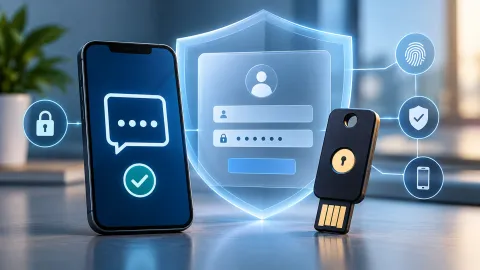
Use multi-factor authentication where it is available. MFA can provide another layer of protection if a password is exposed, although users should still be careful with unexpected authentication requests and verification codes.
Consider using passkeys for accounts that support them. Passkeys can provide phishing-resistant authentication because they work differently from traditional passwords and are designed to authenticate with the legitimate service rather than simply submitting a password to a website.
Also develop a simple habit for suspicious messages: don't use the link in the message to verify the claim.
For example, if a message says your bank account has a problem, open your bank's official app or type the known website address yourself. If a package-delivery message asks you to pay a fee, check the shipment through the retailer or carrier's legitimate website rather than using the message's link.
The same principle applies to tax messages, account warnings, password-reset notices, social-media alerts, and unexpected security notifications.
A Simple Decision Path to Remember
If you want one rule to remember after clicking a suspicious link, focus on what happened next.
Clicked but entered nothing: close the page and check for unexpected downloads.
Entered a password: change the password through the legitimate service and change reused versions elsewhere.
Entered a verification code or approved unexpected MFA: secure the account and review sign-ins and authentication settings.
Entered bank or card information: contact the financial institution through a trusted channel and monitor the account.
Entered your Social Security number: use official identity-theft recovery guidance.
Downloaded or installed something: don't open suspicious files, update security software, and scan the device.
Gave remote access: end the session, secure the device and accounts, and seek appropriate technical assistance if necessary.
Used a work or school account: notify the organization's IT or security team.
The important distinction is that not every phishing click creates the same level of risk. The appropriate response depends on what information, credentials, files, or access may have been exposed.
Conclusion
If you clicked a phishing link, the best response is to stop interacting with the suspicious message and determine what happened after the click.
If you only opened the link, check for unexpected downloads and scan the device if malware may have been downloaded. If you entered a password, secure the affected account and any other accounts where that password was reused. If you entered a verification code or approved an unexpected MFA request, review the account's sign-ins and security settings immediately. Financial information, Social Security numbers, downloaded software, and remote access require their own additional response steps.
Most importantly, don't use the suspicious message or website to fix the problem it may have created. Use the legitimate account provider, financial institution, security software, employer or school IT team, and official U.S. resources instead.
A phishing click is a reason to act carefully—not a reason to panic. The sooner you identify what was exposed and take the appropriate response, the better positioned you are to protect your accounts, device, and personal information.
Frequently asked questions
Can clicking a phishing link infect your phone or computer?
Clicking a phishing link does not automatically mean your phone or computer has been infected. The risk can be greater if the link caused a file to download, you opened or installed something, or another security weakness was exploited. If a suspicious link may have downloaded malware, update your security software and run a scan.
Should I change my password after clicking a phishing link?
If you entered or exposed your password on the phishing site, change it immediately through the legitimate service's official website or app. Also change the password anywhere you reused it and enable multi-factor authentication when available. If you only clicked the link and did not enter credentials, the response is different.
What should I do if I entered my password on a phishing website?
Go directly to the legitimate account through its official website or app, change the exposed password, change any reused passwords, and enable multi-factor authentication. Then review the account for unfamiliar sign-ins, devices, or security-setting changes.
What should I do if I entered my Social Security number on a phishing website?
Treat the exposure as a potential identity-theft issue rather than only a password problem. Use IdentityTheft.gov for official U.S. recovery guidance and follow the recommended steps for your situation.
What should I do if a phishing link downloaded a file?
Do not open or run the downloaded file. Update your security software and run a scan. If you already opened the file, installed software, or gave someone remote access, follow the more serious response steps in the article.
How can I tell if someone got into my account after I clicked a phishing link?
Check the affected account for unfamiliar devices or sign-ins, unexpected password or security-setting changes, unfamiliar recovery information, and other security alerts. Use the account provider's official security tools to review recent activity.
Where should I report a phishing link in the United States?
Phishing attempts can be reported to the Federal Trade Commission through ReportFraud.gov. Suspicious text messages can be forwarded to 7726 (SPAM), and phishing emails can be reported to the Anti-Phishing Working Group. You can also use the reporting feature of the affected email, messaging, or online service.

Maya Thompson writes practical technology content covering consumer technology, software, online services, digital tools, cybersecurity basics, and everyday technology decisions. She focuses on explaining technical topic...