What to Do If Your Email Account Is Hacked: A Step-by-Step Recovery Guide
Learn what to do if your email account is hacked, including how to regain access, secure your account, check for unauthorized changes, protect other accounts, and respond to possible identity or financial risks.
In this article
- How to Tell If Your Email Account Has Been Hacked
- What to Do First If Your Email Account Is Hacked
- If You Can Still Log In to Your Email
- Change the Email Password
- Sign Out Unfamiliar Devices and Sessions
- Check Your Recovery Email and Phone Number
- Turn On Stronger Authentication
- If You Cannot Log In to Your Email
- Use the Provider's Official Account Recovery Process
- If the Hacker Changed Your Password
- If the Hacker Changed Your Recovery Information
- Check Your Email Settings After Regaining Access
- Check Automatic Forwarding
- Review Filters and Mail Rules
- Check Automatic Replies and Signatures
- Review Connected Apps and App Passwords
- Check What the Hacker May Have Done
- Review Sent Messages
- Check Deleted and Missing Messages
- Review Security Activity
- Protect Your Other Accounts
- Change Reused Passwords
- Check for Password-Reset Requests
- What If Your Email Contained Sensitive Information?
- When Should You Scan Your Computer or Phone for Malware?
- Should You Tell Your Contacts?
- What to Do With a Work or School Email Account
- How to Prevent Another Email Account Takeover
- Use a Unique Password
- Use Multi-Factor Authentication
- Keep Recovery Information Current
- Review Security Settings Periodically
- Be Careful With Unexpected Login Requests
- How to Check Whether Your Email Was Exposed in a Data Breach
- A Simple Recovery Checklist
- Conclusion
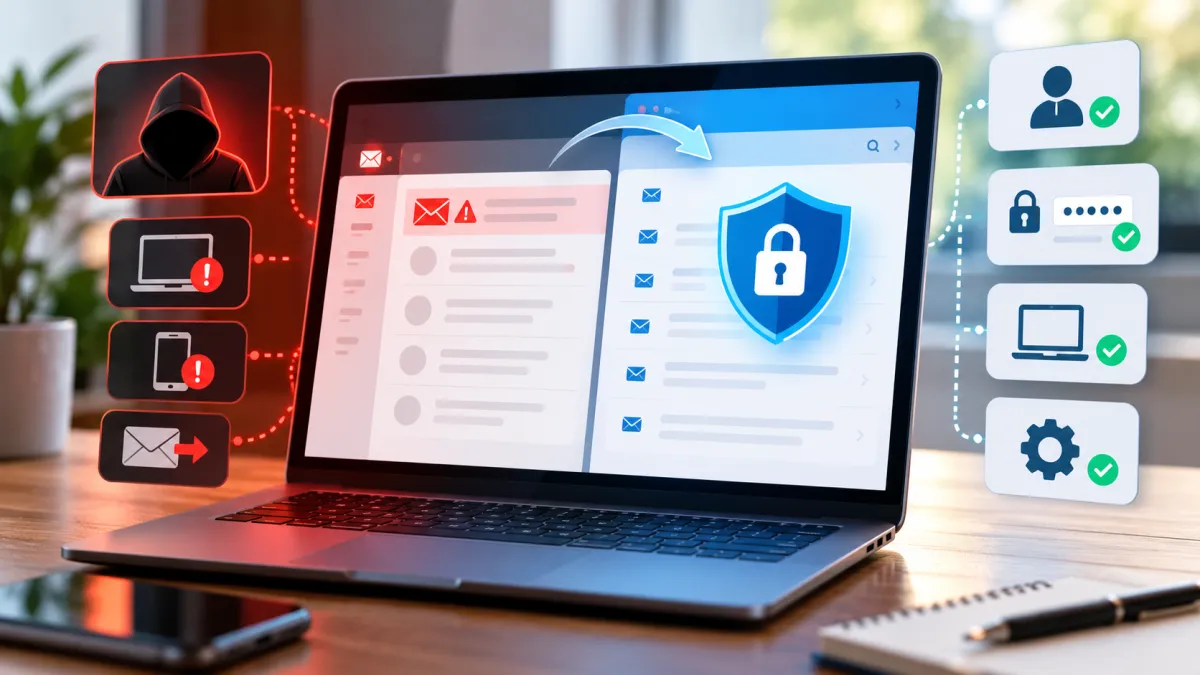
If your email account has been hacked, act quickly—but changing the password is only the beginning. An attacker who gets into your email may be able to read private messages, send emails from your account, change recovery settings, create forwarding rules, or use your inbox to reset passwords for other accounts.
The right response depends on whether you can still sign in. If you still have access, secure the account and look for changes the attacker may have made. If you are locked out, use your email provider's official recovery process before trying anything else.
This guide walks through both situations and explains what to check after you regain control, which other accounts to secure, when to consider malware, and when a compromised email account requires additional action.
How to Tell If Your Email Account Has Been Hacked
Sometimes an account takeover is obvious. Other times, the attacker may remain unnoticed for days or weeks.
Common warning signs include:
-
You see a sign-in or security alert you do not recognize.
-
Your password no longer works even though you did not change it.
-
Your recovery email address or phone number has changed.
-
Emails appear in your Sent folder that you did not send.
-
Messages have disappeared from your inbox or Deleted folder.
-
Friends, family members, coworkers, or other contacts report receiving suspicious messages from you.
-
You notice unfamiliar devices or active sessions.
-
Your email signature, filters, forwarding settings, or automatic replies have changed.
-
You receive password-reset notifications for other accounts that you did not request.
-
You discover unfamiliar connected apps or app passwords.
-
Your account behaves differently after you entered your email credentials on a suspicious website.
One warning sign does not always prove that an account was hacked. For example, an unfamiliar login location can sometimes result from a mobile carrier, VPN, travel, or another legitimate change in network location.
Look for a pattern of activity and review your provider's security information before assuming that every unusual notification represents an account takeover.
If you recently clicked a suspicious phishing link or entered your email credentials into an unexpected website, that can be one possible cause of the compromise. KnowBrook's guide on what to do after clicking a phishing link covers that situation separately.
What to Do First If Your Email Account Is Hacked
The most important thing is to regain and maintain control of the email account.
If you can still sign in, start securing the account immediately. If you cannot sign in, go directly to your provider's official account-recovery process.
The basic recovery order is:
-
Determine whether you still have access.
-
Change or reset the email password.
-
Remove unfamiliar devices and sessions.
-
Check recovery email and phone information.
-
Turn on stronger authentication.
-
Inspect forwarding, filters, and other mail settings.
-
Review sent and deleted messages.
-
Check connected apps and other access methods.
-
Secure other important accounts that depend on the email address.
-
Warn contacts if suspicious messages may have been sent from your account.
Do not stop after step two. A password change can prevent an attacker from using the old password, but it does not automatically mean every other account setting has returned to normal.
If You Can Still Log In to Your Email
Having access to the account gives you an important advantage. Use that access to secure the account before spending time investigating every suspicious message.
Change the Email Password
Change the password using the email provider's official website or app.
Choose a new password that is:
-
Unique to the email account
-
Long enough to resist guessing
-
Not based on easily available personal information
-
Not reused on other websites
If you used the same password for other accounts, change those passwords too.
Your email account deserves particular attention because it can often be used to receive password-reset messages for other services. An attacker who controls your inbox may therefore be able to target additional accounts even if those accounts use different passwords.
Do not give your new password to anyone who claims they can recover or secure the account for you.
Sign Out Unfamiliar Devices and Sessions
Review the devices, browsers, and active sessions associated with your account.
Look for anything you do not recognize. Depending on the provider, you may be able to sign out of individual sessions or sign out of multiple devices at once.
If you see an unfamiliar device, location, or session, treat it as suspicious unless you can confidently identify it as your own activity.
Signing out unfamiliar sessions is important because account access may persist through an existing session even after you change your password, depending on the provider and the type of access involved.
Check Your Recovery Email and Phone Number
Review the recovery information associated with your account.
Make sure:
-
Your recovery email address is yours.
-
Your recovery phone number is yours.
-
You recognize other security information associated with the account.
-
No unfamiliar recovery method has been added.
If an attacker changed your recovery information, do not assume that changing the password is enough. Use the provider's official recovery and security process to address the unauthorized changes.
Recovery information is especially important because it can determine who can regain access to the account later.
Turn On Stronger Authentication
Enable multi-factor authentication or another stronger authentication method supported by your provider.
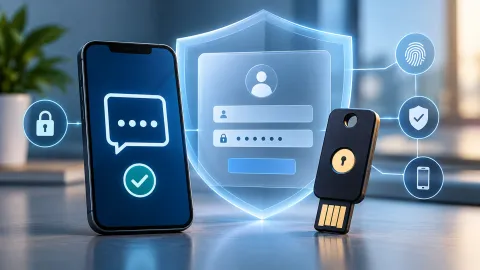
MFA adds another layer of protection beyond the password. Depending on the account, available methods may include an authenticator app, security key, passkey, or another verification method.
A passkey can also provide a strong sign-in option on supported accounts. If you use Google, KnowBrook's guide on setting up a passkey on your Google Account explains the process in more detail.
Do not treat MFA as a replacement for reviewing the account after a compromise. It is an additional layer of protection, not a reason to skip the recovery process.
If You Cannot Log In to Your Email
Being locked out can be alarming, particularly if the password was changed without your permission.
Do not search for a random "account recovery service" or give your password or verification codes to someone who promises to recover the account.
Instead, use the official recovery system provided by your email service.
Use the Provider's Official Account Recovery Process
Go directly to your email provider's official website or app and find its account-recovery option.
The recovery process may ask you to verify information associated with the account. The exact steps vary between providers and can change over time.
If the provider offers a dedicated compromised-account or sign-in recovery tool, use that rather than relying on instructions from an unknown third party.
If the Hacker Changed Your Password
A changed password does not necessarily mean the account is permanently lost.
Use the provider's official recovery process and provide the requested verification information. If you recently changed the password yourself, remember that account-recovery systems may use previous account information to help establish ownership.
Do not repeatedly submit random information or use unofficial recovery services. Follow the provider's instructions carefully.
Once access is restored, immediately review the account for unauthorized changes instead of assuming the problem is completely resolved.
If the Hacker Changed Your Recovery Information
Recovery information can be particularly important during an account takeover.
If your recovery email address or phone number was replaced, the normal password-reset process may not work the way you expect. Use the provider's official compromised-account or account-recovery process.
The provider may have additional ways to verify that you are the legitimate account owner.
Be especially cautious of anyone contacting you and claiming they can bypass the provider's recovery process. Never provide passwords, authentication codes, or recovery codes to an unsolicited person.
Check Your Email Settings After Regaining Access
Once you control the account again, inspect the settings that an attacker could have changed.
This is one of the most important parts of email-account recovery because simply changing the password may leave unauthorized settings in place.
Check Automatic Forwarding
Look for email-forwarding rules you did not create.
An attacker may try to forward incoming messages to another address so they can continue receiving copies of emails after you regain access.
Remove unauthorized forwarding rules and verify that legitimate forwarding settings are still correct.
Review Filters and Mail Rules
Check your filters, rules, labels, folders, and other automated mail settings.
An attacker may create a rule that moves security alerts, password-reset messages, or other important emails away from your normal inbox.
Look for rules that:
-
Move messages automatically
-
Delete specific messages
-
Mark messages as read
-
Forward messages
-
Redirect messages to unusual folders
-
Apply unfamiliar conditions
Remove anything you did not create.
Check Automatic Replies and Signatures
Review your email signature and automatic replies.
If an attacker changed them, restore your normal settings.
An unauthorized automatic reply can potentially send messages to people who contact you, while an altered signature can make fraudulent messages appear more convincing.
Review Connected Apps and App Passwords
Check which applications and services have access to the email account.
Remove unfamiliar applications or access methods.
If your provider supports app passwords, review those as well and remove any you do not recognize.
Connected applications can provide another route into an account, so reviewing them is an important part of post-compromise cleanup.
Check What the Hacker May Have Done
After securing the account, investigate what happened while someone else may have had access.
You do not need to examine every email individually. Focus on activity that could affect your security or other accounts.
Review Sent Messages
Look through your Sent folder for messages you did not send.
Pay particular attention to messages containing:
-
Links
-
Requests for money
-
Requests for passwords or codes
-
Attachments
-
Requests for personal information
-
Password-reset instructions
-
Messages sent to people you know
If suspicious messages were sent from your account, notify the recipients.
Check Deleted and Missing Messages
Look at your Deleted, Trash, Archive, or other relevant folders.
An attacker may have deleted security alerts or messages that could reveal what happened.
If important messages disappeared, check whether your provider offers a way to recover recently deleted mail.
Review Security Activity
Check the account's recent security activity if your provider offers it.
Look for unfamiliar:
-
Sign-ins
-
Devices
-
Locations
-
Password changes
-
Recovery-information changes
-
Security-method changes
-
Connected applications
Keep in mind that location information may not always be precise. A suspicious event is more meaningful when it matches other evidence of unauthorized activity.
Protect Your Other Accounts
Your email account may be more important than it initially appears.
Many online services use an email address as the recovery method for a password reset. If someone controls your email, they may be able to request resets for other accounts.
Start with accounts where unauthorized access could cause significant harm.
Prioritize:
-
Financial accounts and payment services
-
Accounts containing sensitive personal information
-
Your primary online accounts
-
Social media accounts
-
Shopping and subscription accounts
-
Work or school accounts
-
Other services connected to the compromised email address
The exact order can vary depending on what information was stored in your email and which services use it for recovery.
Change Reused Passwords
If your hacked email password was also used elsewhere, change those passwords immediately.
Do not simply add a different number or symbol to the old password. Use a genuinely different password for each important account.
A password manager can help you create and manage unique passwords without requiring you to memorize every one.
Check for Password-Reset Requests
Review other accounts for password-reset emails or security alerts that you did not initiate.
If you find unexpected reset activity, go directly to the affected service using its official website or app and secure the account.
Do not use a password-reset link from a suspicious email if you are unsure whether the message is legitimate.
What If Your Email Contained Sensitive Information?
Email accounts often contain more sensitive information than people realize.
Your inbox may contain documents, account numbers, tax-related messages, financial correspondence, identity information, travel records, employment information, or password-reset links.
If the compromised account contained sensitive information, think beyond the email account itself.
For example, if you believe financial information may have been exposed, review the relevant financial accounts and contact the institution through an official channel if necessary.
If personal information may have been misused for identity theft, the Federal Trade Commission's IdentityTheft.gov resource can provide U.S.-specific recovery guidance.
The appropriate response depends on what information was exposed and whether there is evidence of misuse. Do not assume that every compromised email account automatically means identity theft occurred.
When Should You Scan Your Computer or Phone for Malware?
Not every email-account takeover means that your computer or phone has malware.
However, a device scan can be appropriate when there are signs that the device itself may be compromised.
Consider malware-related precautions if:
-
You downloaded an unexpected file before the compromise.
-
You installed unfamiliar software or a browser extension.
-
You gave someone remote access to your device.
-
You notice unusual device behavior.
-
Multiple accounts become compromised unexpectedly.
-
Your provider or security software warns about suspicious activity on the device.
Use reputable security software and follow the security guidance provided by your operating system and email provider.
If the device may be compromised, be careful about changing passwords from that device until you have addressed the potential security problem. For provider-specific recovery instructions, follow the provider's official guidance.
The important distinction is that a hacked email account does not automatically prove that malware caused the problem.
Should You Tell Your Contacts?
If someone may have used your email account to send messages, tell the people who could have received them.
A simple warning can prevent a second problem.
Tell contacts to be cautious about unexpected messages from your address, particularly messages asking them to:
-
Click a link
-
Open an attachment
-
Send money
-
Share sensitive information
-
Provide a password or verification code
If the attacker sent fraudulent messages from your account, do not assume that changing the password will automatically alert everyone who received them.
Contacting people directly gives them an opportunity to ignore the suspicious message before they interact with it.
What to Do With a Work or School Email Account
A work or school email account may require a different response because it can provide access to organizational systems and information.
If you believe a work or school account has been compromised, notify the appropriate IT, security, or account administrator as soon as possible.
Do not assume that changing the password yourself is enough.
An organization may need to:
-
Revoke active sessions
-
Review sign-in activity
-
Investigate unauthorized access
-
Reset additional credentials
-
Check connected applications
-
Protect other organizational accounts
-
Determine whether company or school information was accessed
Follow the organization's incident-reporting process if one exists.
This is particularly important when the account is connected to cloud storage, internal systems, financial information, customer data, or other organizational resources.
How to Prevent Another Email Account Takeover
After recovering the account, take steps to reduce the chance of another compromise.
Use a Unique Password
Your email password should not be reused on other websites.
If another service suffers a breach and the same password is exposed, password reuse can make it easier for an attacker to target your email.
If you have trouble managing multiple unique passwords, consider using a reputable password manager.
Use Multi-Factor Authentication
Turn on MFA wherever your email provider supports it.
This provides an additional security layer if someone obtains your password.
For accounts that support stronger authentication methods such as passkeys or security keys, consider using them when appropriate.
Keep Recovery Information Current
Make sure your recovery email address and phone number remain accurate.
Review them periodically, particularly after changing phone numbers, losing access to an old email account, or making other major changes to your accounts.
Review Security Settings Periodically
You do not need to inspect every account setting every day.
But it is useful to know where your provider shows:
-
Recent sign-ins
-
Devices
-
Recovery information
-
MFA settings
-
Forwarding rules
-
Filters
-
Connected applications
Knowing where these controls are located makes it easier to respond quickly if something goes wrong.
Be Careful With Unexpected Login Requests
Do not enter your email password into a website simply because a message tells you that your account has a problem.
Instead, open your email provider's official website or app directly.
The same principle applies to verification codes. An unexpected request for a code can be a warning that someone is attempting to access your account.
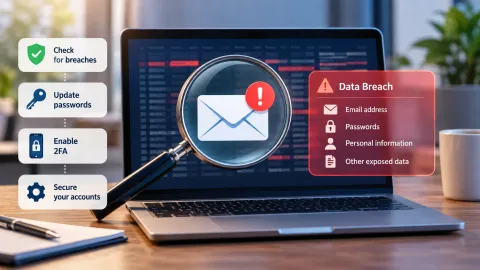
How to Check Whether Your Email Was Exposed in a Data Breach
A data breach can be one possible source of exposed email credentials.
If you are concerned that your email address or account information appeared in a breach, you can investigate separately from the account-recovery process. KnowBrook's guide on checking whether your email was exposed in a data breach explains how to approach that question.
A breach check can help you understand whether your email address has appeared in known exposed data, but it does not prove that your current email account has been hacked.
Treat the two questions separately:
-
Was my email address exposed in a breach?
-
Does someone currently have unauthorized access to my email account?
Both can matter, but they require different responses.
A Simple Recovery Checklist
If you need a quick sequence to follow, use this order:
If you still have access:
-
Change your email password.
-
Sign out unfamiliar devices and sessions.
-
Verify your recovery email and phone.
-
Turn on MFA or another stronger authentication method.
-
Check forwarding rules.
-
Check filters and mail rules.
-
Review automatic replies and signatures.
-
Review connected apps and app passwords.
-
Check sent and deleted messages.
-
Secure other accounts that use the email address for recovery.
-
Change any reused passwords.
-
Warn contacts if suspicious messages were sent.
-
Address financial, identity, device, work, or school risks as appropriate.
If you are locked out:
-
Use the email provider's official recovery process.
-
Follow the provider's identity-verification instructions.
-
Address unauthorized recovery-information changes through the provider.
-
Regain access before assuming the account is secure.
-
Once recovered, perform the full post-compromise security review.
The important point is that account recovery and account cleanup are two different stages.
Conclusion
If your email account has been hacked, focus first on regaining control and then on finding anything the attacker may have changed.
Changing the password is an important first step, but it should not be the last one. Review devices and sessions, recovery information, forwarding rules, filters, connected applications, sent and deleted messages, and other security settings. Then protect the other accounts that depend on the compromised email address.
If you are locked out, use your provider's official recovery process rather than relying on third-party recovery services. If sensitive information, financial accounts, a work or school system, or your device may also be affected, take the additional steps appropriate to that situation.
The goal is not simply to get back into your inbox. It is to make sure the attacker no longer has a useful path back into the account or the other accounts connected to it.
Frequently asked questions
What should I do if the hacker changed my recovery email or phone number?
If a hacker changed your recovery information, use your email provider's official account-recovery process. Do not use third-party services that claim they can recover the account for you. Be prepared to verify your identity using information previously associated with the account.
Can a hacker still access my email after I change the password?
Possibly. Changing the password is an important step, but you should also review unfamiliar devices or sessions, recovery information, forwarding rules, filters, connected apps, and other security settings for changes you did not make.
Which accounts should I secure first after my email is hacked?
Start with important accounts that use the compromised email address for password recovery, especially financial and other high-value accounts. Also change passwords on any accounts where you reused the compromised email password, using a unique password for each account.
Should I tell my contacts if my email account was hacked?
Yes. If your account may have sent messages while compromised, warn contacts not to click unexpected links or attachments and not to respond to unusual requests for money or sensitive information that appear to come from you.
What should I do if a hacker created a forwarding rule in my email?
Remove any forwarding rule you did not create and review filters and other mail settings for unauthorized changes. An unfamiliar forwarding rule can allow copies of incoming messages to be sent somewhere controlled by the attacker.
What if my hacked email contained financial or identity information?
Take additional action based on what information may have been exposed or misused. Contact affected financial institutions when appropriate, secure related accounts, and use official U.S. identity-theft recovery resources if you suspect identity theft or misuse of personal information.

Maya Thompson writes practical technology content covering consumer technology, software, online services, digital tools, cybersecurity basics, and everyday technology decisions. She focuses on explaining technical topic...