Is It Safe to Save Passwords in Google Chrome? Security Risks Explained
Learn how Google Chrome stores and protects passwords, including local storage, Google Account synchronization and encryption. Understand potential security risks, protect sensitive accounts, check compromised passwords and choose safer password-management practices.
In this article
- How Does Google Chrome Save and Protect Passwords?
- Passwords Stored on Your Device
- Passwords Synchronized With Your Google Account
- How Does Encryption Protect Saved Passwords?
- Is Chrome Password Manager Safe for Everyday Use?
- Security Risks of Saving Passwords in Google Chrome
- 1. Someone Gains Access to Your Unlocked Computer
- 2. Your Google Account Gets Compromised
- 3. Malware or Malicious Browser Extensions
- 4. Saving Passwords on Shared or Work Computers
- Is It Safe to Save Banking Passwords in Chrome?
- Google Chrome Password Manager vs. Dedicated Password Managers
- When Chrome Password Manager May Be Enough
- When a Dedicated Password Manager May Be Better
- How to Make Saved Passwords in Chrome More Secure
- 1. Secure Your Google Account
- 2. Use Unique Passwords for Every Website
- 3. Protect Your Computer and Phone
- 4. Enable Two-Step Verification
- 5. Review Saved Passwords Regularly
- 6. Be Careful With Browser Extensions
- How to Check If Your Saved Chrome Passwords Are Compromised
- Steps to Run Password Checkup
- What Should You Do If a Password Is Exposed?
- How to Remove Saved Passwords From Google Chrome
- Remove an Individual Saved Password
- Remove All Saved Passwords
- What to Do If Your Computer With Saved Chrome Passwords Is Lost or Stolen
- 1. Secure Your Google Account From Another Device
- 2. Review Important Accounts
- 3. Change Passwords if Exposure Is Possible
- 4. Use Available Device-Security Features
- Google Chrome Password Manager vs. Passkeys: What's the Difference?
- Conclusion

Saving passwords in Google Chrome can make everyday browsing easier. Instead of remembering dozens of usernames and passwords, you can let Chrome store your login details and fill them in when you return to a website.
But convenience raises an important security question: Is it safe to save passwords in Google Chrome?
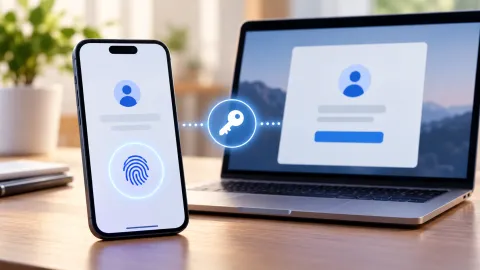
For most people, Google Chrome's built-in password manager is a reasonable option when used with a well-secured device and Google Account. It uses encryption and includes protections such as website matching and compromised-password checks. However, it is not risk-free. Someone who gains access to your unlocked computer, Google Account, or browser profile may be able to access saved credentials, depending on your device and security settings.
The most important distinction is that saving passwords in Chrome does not automatically make every account equally secure. Your protection also depends on how you store passwords, whether synchronization is enabled, how you protect your Google Account, and whether your device is secure.
This guide explains how Chrome stores passwords, the risks worth understanding, how it compares with dedicated password managers, and what you can do to protect your saved login information.
How Does Google Chrome Save and Protect Passwords?
Google Chrome uses Google Password Manager to save, organize, and fill in login credentials for websites. When you sign in to a website, Chrome may ask whether you want to save the username and password. If you accept, Chrome stores the information so it can help you sign in again later.
You can access saved credentials through Chrome's password settings or Google Password Manager.
There are two important storage arrangements to understand.
Passwords Stored on Your Device
Chrome can store passwords locally on the device where you use the browser. In this arrangement, your saved login information is associated with your local Chrome profile rather than being automatically available through your Google Account on every device.
Local storage can be convenient if you primarily use one computer. However, it also means your password security depends partly on the security of that computer and its operating system.
For example, if someone gains access to your Windows or Mac user account, they may have an opportunity to access information stored in your browser profile. Chrome uses protections such as on-device encryption, but the exact implementation depends on the operating system and configuration.
A computer with a strong login password, current security updates, and device encryption generally provides a better foundation than one that anyone can open.
Passwords Synchronized With Your Google Account
Chrome can also save passwords to your Google Account. When the relevant synchronization or account-storage settings are enabled, your saved credentials can be available across supported devices where you sign in to the same account.
For example, you might save a password on your Windows computer and later use it on your Android phone.
This arrangement offers convenience, particularly if you regularly switch between devices. It also means your Google Account becomes an important part of your password security.
If someone gains unauthorized access to your Google Account, they may have an opportunity to access information and services associated with it. That is why securing the account with a strong password and two-step verification matters.
How Does Encryption Protect Saved Passwords?
Encryption helps protect information by making it unreadable without the appropriate decryption method or key.
Chrome uses security measures that can include on-device encryption. However, it is important not to assume that every saved password receives identical protection in every situation. The details depend on the operating system, where the password is stored, and the settings being used.
For synchronized information, Chrome also provides an optional custom passphrase setting for certain sync arrangements. This can add another layer of protection for the data covered by that passphrase.
A custom passphrase is different from your regular Google Account password. It is used to protect synchronized Chrome data, and Google indicates that data encrypted with a custom passphrase cannot be read by Google without that passphrase.
Before enabling it, understand that you must remember the passphrase. Losing it can affect your ability to access synchronized data.
The important takeaway is that encryption reduces the risk of unauthorized access, but it does not make a compromised device or account harmless.
Is Chrome Password Manager Safe for Everyday Use?
For many everyday users, Chrome Password Manager offers a practical balance between convenience and security.
It can help you create stronger passwords, avoid typing credentials repeatedly, and use different passwords across websites. These are meaningful advantages because reusing the same password across multiple accounts can expose several accounts if one website suffers a data breach.
Chrome also includes protections that make password autofill safer than simply copying credentials into any website.
For example, its password manager matches saved passwords with the websites they belong to. This helps protect against certain phishing attempts in which a fraudulent website imitates a legitimate service and tries to collect your login information.
Chrome may also ask you to confirm your identity before showing or managing saved passwords. Depending on your device and settings, this confirmation may involve your Google Account credentials or biometric authentication.
However, these protections do not eliminate every threat.
Chrome Password Manager is generally a reasonable choice when:
-
You use a personal computer or phone that only you can access.
-
Your device has a strong screen lock or login password.
-
Your Google Account is protected with two-step verification.
-
You keep Chrome and your operating system updated.
-
You use unique passwords for different websites.
-
You regularly review your saved passwords for security problems.
It may be less suitable as your only password-management solution if you need advanced sharing controls, organization-wide administration, specialized security policies, or additional features offered by dedicated password managers.
The right choice depends on how you use your devices and what level of control you need.
Security Risks of Saving Passwords in Google Chrome
Chrome provides useful security protections, but understanding its limitations is just as important as understanding its features.
Here are the main risks to consider.
1. Someone Gains Access to Your Unlocked Computer
One of the most practical risks is leaving your computer unlocked.
Imagine saving your email, shopping, and banking passwords in Chrome. You step away from your desk without locking the computer. Another person who can use your device may be able to interact with your browser profile.
Depending on the operating system, Chrome configuration, and authentication prompts, that person may be able to access saved login information or use websites where you are already signed in.
This is especially important for shared computers at home, workplaces, libraries, or other public locations.
How to reduce the risk:
-
Lock your computer whenever you leave it.
-
Use a strong Windows, Mac, or Chromebook login password.
-
Enable automatic screen locking after a short period of inactivity.
-
Avoid saving personal passwords in browser profiles used by other people.
-
Do not leave your browser signed in on computers you do not control.
A strong password manager cannot fully protect you if someone has unrestricted access to an already-unlocked device.
2. Your Google Account Gets Compromised
If you save passwords to your Google Account, protecting that account becomes especially important.
An attacker who gains access to your Google Account may be able to reach more than your email. Depending on your account settings and connected services, the account may provide access to synchronized browser information and other personal data.
This creates a potential chain of exposure.
For example:
-
An attacker obtains your Google Account credentials.
-
The attacker gains access to your account.
-
They attempt to access synchronized information or other connected services.
-
Other accounts may become vulnerable if their credentials are accessible.
The actual access an attacker can obtain depends on your security settings, authentication requirements, and encryption configuration.
How to reduce the risk:
-
Use a unique, strong Google Account password.
-
Turn on two-step verification.
-
Review devices signed in to your Google Account.
-
Remove devices you no longer recognize or use.
-
Pay attention to unexpected security alerts.
-
Consider setting up a passkey for stronger account authentication.
You can also read KnowBrook's guide to setting up a passkey on your Google Account.
A passkey can help protect the account used to access synchronized information, although it does not replace good device security.
3. Malware or Malicious Browser Extensions
Malware is another potential threat.
Some malicious programs are designed to steal information from computers, including browser data and login credentials. A compromised device can expose information even when the browser itself uses encryption.
Malicious browser extensions can also create security and privacy problems. An extension with excessive permissions may be able to access information on websites you visit or interfere with your browsing activity.
Not every extension is dangerous, but installing unknown extensions creates unnecessary risk.
How to reduce the risk:
-
Install extensions only when you genuinely need them.
-
Review the permissions requested by each extension.
-
Remove extensions you no longer use.
-
Avoid downloading browser extensions from unfamiliar websites.
-
Keep your operating system and security software updated.
-
Do not install software from suspicious pop-ups or unsolicited links.
If you suspect your computer is infected, changing passwords from that same device may not be enough. First use a trusted device to secure important accounts and address the suspected infection.
4. Saving Passwords on Shared or Work Computers
Saving personal passwords on a shared computer can create risks even when you trust the people who use it.
A shared computer may have multiple browser profiles, saved sessions, installed extensions, or users with different levels of access. You may also forget to sign out of websites when your session ends.
Work computers require additional caution. Employers may manage devices, apply security policies, or monitor activity under their workplace rules.
A safer approach:
-
Avoid saving personal passwords on public or shared computers.
-
Use your own browser profile on a personal device.
-
Do not save banking or primary email credentials on a computer used by multiple people.
-
Follow your employer's password-management policies.
-
Sign out of personal accounts when using a work device for personal browsing.
For sensitive accounts, using a personal device is generally the better option.
Is It Safe to Save Banking Passwords in Chrome?
Saving a banking password in Chrome can be convenient, but financial accounts deserve extra caution.
Your bank account may provide access to money, payment information, statements, personal details, and other financial services. If someone gains unauthorized access, the consequences can be more serious than losing access to an ordinary shopping account.
That does not mean Chrome is automatically unsafe for banking passwords. The decision depends on your device security, account protections, and personal risk.
Consider these factors before saving a banking password:
| Security factor | What to consider |
|---|---|
| Personal device | Use a computer or phone that only you control. |
| Device login | Protect access with a strong password, PIN, or biometric lock. |
| Google Account | Enable two-step verification and review account security. |
| Banking authentication | Use additional verification offered by your bank. |
| Password uniqueness | Never reuse your banking password on another website. |
| Device sharing | Avoid saving banking credentials on shared computers. |
For example, someone who uses a personally owned, encrypted laptop with a strong login password and a protected Google Account has a different risk profile from someone who saves banking credentials on a shared family computer.
Also remember that saving a banking password does not remove the need for your bank's own security measures. Banks may use one-time verification codes, security notifications, device recognition, or other controls.
If your bank offers passkey authentication, it may be worth considering. A passkey can reduce reliance on traditional passwords, depending on the bank's implementation.
Google Chrome Password Manager vs. Dedicated Password Managers
Chrome is not the only way to store passwords. Dedicated password managers are designed specifically to organize and protect login credentials.
Both options can be useful, but they serve somewhat different needs.
| Feature | Google Chrome Password Manager | Dedicated password manager |
|---|---|---|
| Browser integration | Built into Chrome | Often available through browser extensions |
| Password saving | Yes | Yes |
| Password generation | Yes | Commonly available |
| Autofill | Yes | Commonly available |
| Cross-device access | Available through supported Google Account settings | Depends on the service and subscription |
| Password security checks | Password Checkup | Varies by provider |
| Sharing controls | More limited | Some offer advanced sharing features |
| Business administration | Not designed as a full enterprise password-management platform | Some offer team and business plans |
| Advanced organization | Basic password organization | May include folders, vaults, and additional controls |
When Chrome Password Manager May Be Enough
Chrome may be sufficient if you mainly browse using Chrome, want a convenient way to save passwords, and do not need advanced password-management features.
For example, someone who uses one personal computer and an Android phone may appreciate having saved passwords available across both devices.
Chrome also avoids the need to install another application or browser extension just to manage ordinary website logins.
When a Dedicated Password Manager May Be Better
A dedicated password manager may be worth considering if you:
-
Use several different browsers.
-
Need to share credentials securely with family members or coworkers.
-
Manage many accounts across different devices.
-
Want more advanced vault organization.
-
Need business or team administration features.
-
Want additional password-management options beyond basic browser storage.
Some dedicated managers also provide features such as emergency access, secure document storage, and more detailed sharing controls. Availability depends on the provider and plan.
However, a dedicated password manager is not automatically safer simply because it is a separate application. It also becomes a valuable target because it may contain credentials for many accounts.
Choose a reputable provider, protect the master password, enable available multi-factor authentication, and understand how the service handles encryption and account recovery.
The National Institute of Standards and Technology (NIST) addresses password managers and autofill in its current digital identity guidance, SP 800-63B-4. The guidance requires covered authentication services to allow password managers and autofill. It does not certify or specifically endorse Google Chrome as a password manager.
How to Make Saved Passwords in Chrome More Secure
If you decide to use Chrome Password Manager, a few practical steps can reduce avoidable security risks.
1. Secure Your Google Account
If your passwords are synchronized with your Google Account, start by protecting that account.
Use a strong, unique password that you do not use anywhere else. Enable two-step verification so that knowing your password alone is not enough to access the account.
You should also review your signed-in devices and remove access from devices you no longer recognize or use.
2. Use Unique Passwords for Every Website
Password reuse is one of the most avoidable account-security mistakes.
Suppose you use the same password for a shopping website, email account, and social media account. If one service suffers a data breach and your password is exposed, attackers may try that same credential on other websites.
This technique is commonly known as credential stuffing.
Use a different password for every important account. Chrome can generate strong passwords when you create accounts, which can make this easier.
3. Protect Your Computer and Phone
Your password manager is only as secure as the devices you use to access it.
Set up a strong screen lock, enable automatic locking, and keep your operating system updated. Use device encryption where available.
If your laptop or phone is lost or stolen, these protections can make unauthorized access more difficult.
4. Enable Two-Step Verification
Two-step verification adds another layer of protection to accounts that support it.
Depending on the service, the second step may involve an authenticator app, a security key, a passkey, or another supported method.
Start with your Google Account and primary email account. These accounts are particularly important because they may be used to recover access to other services.
5. Review Saved Passwords Regularly
Do not assume that a password remains safe forever simply because Chrome saved it successfully.
Websites can experience data breaches, passwords can become exposed, and accounts can be affected by phishing attacks.
Use Google Password Manager's security-checking features to identify certain exposed, weak, or reused passwords.
When a password is flagged, investigate the affected account and change the password through the legitimate website or application.
6. Be Careful With Browser Extensions
Before installing an extension, consider whether you actually need it.
Review its permissions and remove extensions that are unfamiliar or no longer useful. Avoid extensions that request access to more browsing information than their purpose reasonably requires.
A password manager can use strong encryption and still be exposed to risks created by a compromised browser environment.
How to Check If Your Saved Chrome Passwords Are Compromised
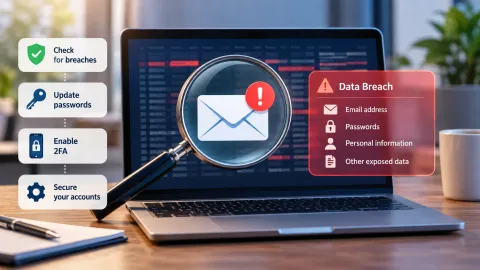
Google Password Manager includes a feature called Password Checkup. It can help identify certain saved passwords that are exposed in known data breaches, weak, or reused across multiple accounts.
This is useful because people may not realize that a password they have used for years has appeared in a breach.
You can access the feature through Chrome or Google Password Manager.
Steps to Run Password Checkup
-
Open Google Chrome on your computer.
-
Select the three-dot menu in the upper-right corner.
-
Open Passwords and autofill.
-
Select Google Password Manager.
-
Open Checkup.
-
Review any security issues reported.
-
Change affected passwords through the relevant websites.
You can also visit Google Password Manager to manage saved credentials and access available security-checking features.
What Should You Do If a Password Is Exposed?
If Password Checkup identifies an exposed password, take the warning seriously.
Follow these steps:
-
Open the affected website using its official address.
-
Sign in and change the exposed password.
-
Create a new password that you have not used elsewhere.
-
If you reused the exposed password, change it on every other website where it was used.
-
Review recent account activity for anything unfamiliar.
-
Enable additional authentication if the service offers it.
If your primary email account is affected, secure it promptly because email access can be used to reset passwords for other services.
For more guidance, see KnowBrook's article on recovering a hacked email account.
One important limitation: Password Checkup cannot guarantee that every compromised password will be detected. A clean result is useful, but it does not prove that every account is secure.
How to Remove Saved Passwords From Google Chrome
You may decide that you no longer want Chrome to save a particular password. You can remove individual credentials through Google Password Manager.
Before deleting anything, check whether the password is stored locally or synchronized with your Google Account.
If you are signed in and delete synchronized information through Chrome, Google explains that the information may also be removed from your Google Account and other devices where you are signed in.
That means deleting a password on one device can affect your other synchronized devices.
Remove an Individual Saved Password
-
Open Chrome.
-
Select the three-dot menu.
-
Open Passwords and autofill.
-
Select Google Password Manager.
-
Find the website whose password you want to remove.
-
Open its saved credential.
-
Select the delete option and confirm.
The exact interface may vary depending on your device and Chrome version.
Remove All Saved Passwords
If you want to stop using Google Password Manager entirely, review its settings and available deletion controls.
Before removing everything, make sure you have another secure way to access important accounts. Deleting saved credentials without a backup can leave you unable to sign in if you do not remember the passwords.
Do not export passwords to an ordinary, unprotected file as a long-term backup. An exported password file can contain readable credentials and may expose every account in the file if someone obtains it.
What to Do If Your Computer With Saved Chrome Passwords Is Lost or Stolen
Losing a computer that contains saved passwords can be stressful, especially if you use Chrome for email, banking, shopping, and other accounts.
The right response depends on whether your passwords were stored locally, synchronized with your Google Account, or both.
Take these steps as soon as possible.
1. Secure Your Google Account From Another Device
Use a trusted phone or computer to review your Google Account security.
Check the devices signed in to your account and take appropriate action if the missing computer appears there. Change your Google Account password if you believe someone may have accessed it.
2. Review Important Accounts
Prioritize accounts that could be used to access other services or sensitive information.
These commonly include:
-
Your primary email account
-
Banking and financial accounts
-
Payment services
-
Shopping accounts with saved payment details
-
Social media accounts
-
Work-related accounts
Review recent sign-in activity where available and contact your bank if you notice suspicious financial activity.
3. Change Passwords if Exposure Is Possible
If the stolen computer was unlocked, lacked adequate protection, or may have been accessed by someone else, consider changing passwords for important accounts.
Start with your email and financial accounts. Use a trusted device and create unique replacement passwords.
4. Use Available Device-Security Features
Depending on your computer and operating system, you may have access to device-location, remote-locking, or remote-wipe features.
Use the appropriate official service if it is available and enabled.
Do not assume that changing your Google Account password automatically removes every locally stored password or secures every account that was previously signed in.
Google Chrome Password Manager vs. Passkeys: What's the Difference?
Passwords and passkeys are different ways to authenticate your identity when signing in to online services.
Chrome Password Manager stores traditional passwords and can help fill them into website login forms. Passkeys use cryptographic credentials associated with your device or password-management system.
With a traditional password, you enter a secret that can potentially be stolen through phishing or reused on another website.
A passkey works differently. It uses a public-key cryptographic system: the service stores a public key, while the corresponding private key remains protected by the user's device or credential system.
Passkeys are designed to resist common phishing attacks because authentication is tied to the legitimate website or service rather than relying on a password that can be typed into a fake login page.
| Feature | Traditional password | Passkey |
|---|---|---|
| How it works | Uses a secret text-based credential | Uses public-key cryptography |
| Manual typing | Usually required unless autofilled | Usually not required |
| Password reuse risk | Possible if users reuse credentials | Not based on reusing a traditional password |
| Phishing resistance | Can be vulnerable to fake login pages | Designed to resist common phishing attacks |
| Device support | Works across many browsers and devices | Depends on service and device support |
Passkeys are increasingly useful for accounts that support them, but traditional passwords remain common.
You do not necessarily need to stop using Chrome Password Manager to benefit from passkeys. Google Password Manager can also store and manage passkeys on supported devices and services.
For important accounts, consider using passkeys where available while maintaining strong, unique passwords for services that still require them.
Conclusion
Saving passwords in Google Chrome is generally a reasonable option for everyday users who protect their devices and Google Accounts properly. Chrome offers useful security measures, including encryption, website matching, identity confirmation, and Password Checkup.
However, no password manager can eliminate every risk. An unlocked computer, compromised Google Account, malicious extension, or infected device can still create opportunities for unauthorized access.
If you use Chrome Password Manager, protect your Google Account with two-step verification, use a strong device login, avoid password reuse, and review saved credentials regularly.
For users who need advanced sharing, organization, or cross-browser features, a dedicated password manager may be a better fit.
The best choice is the one that helps you maintain unique credentials, protects access to your password vault, and fits the way you use your devices.
Frequently asked questions
1. Does Google have access to the passwords I save in Chrome?
Google's ability to access saved password data depends on how passwords are stored and which encryption options are enabled. Chrome uses encryption to protect saved credentials. Local storage, Google Account synchronization and optional custom passphrase encryption have different security arrangements. A custom passphrase can prevent Google from reading data protected by that passphrase. This protection should not be assumed for every storage configuration.
2. Does using Incognito mode protect my saved passwords?
No. Incognito mode primarily limits the browsing information Chrome retains locally after a private session. It does not protect your existing password vault against unauthorized device or account access. It also does not protect against malware or other device-security threats. Incognito is a private-browsing feature, not a password-security solution.
3. Does Chrome automatically warn me if a saved password is exposed in a data breach?
Chrome and Google Password Manager provide compromised-password warnings and Password Checkup functionality. Password Checkup can identify certain exposed, weak and reused passwords. However, these features cannot guarantee detection of every compromised credential. If a password is identified as compromised, change it on the affected website and avoid reusing it elsewhere.
4. What happens if I delete a saved password while Chrome synchronization is enabled?
If the password is stored in your Google Account, deleting it while signed in can remove it from the account and other synchronized devices. Locally stored passwords have different storage behavior. Before deleting a password, check whether it is saved locally or in your Google Account so you understand where the change will apply.
5. Can someone access my Chrome passwords if they can use my unlocked computer?
Potentially, yes. Someone with access to your unlocked computer may be able to access your Chrome profile or attempt to view saved credentials. The actual risk depends on your operating system, device encryption, Chrome configuration and additional authentication prompts. Protect your computer with a strong login, keep its software updated and secure your Google Account.

Maya Thompson writes practical technology content covering consumer technology, software, online services, digital tools, cybersecurity basics, and everyday technology decisions. She focuses on explaining technical topic...