How to Fix Login.gov Identity Verification Problems
Having trouble verifying your identity with Login.gov? Learn how to fix rejected ID photos, mismatched personal information, phone verification errors, and account lockouts. This guide explains accepted identification, USPS and mail verification options, and when to contact Login.gov support or the government agency you are trying to access.
In this article
- Identify Which Login.gov Problem You Are Experiencing
- Check Whether You Are Using an Accepted ID
- Check the ID Before Submitting It
- Fix Login.gov ID Photo Rejection Errors
- Use a Dark, Plain Background
- Improve Lighting and Remove Glare
- Keep All Edges Inside the Frame
- Troubleshoot Camera Access
- Correct Personal Information Verification Errors
- Check Your Name and Date of Birth
- Review Your Social Security Number
- Check Your Address
- Resolve Login.gov Phone Verification Problems
- Steps to Fix Phone Number Errors
- Do Not Confuse Identity Verification With a Sign-In Code Problem
- Understand Login.gov Account Lockouts
- What to Do if Identity Verification Is Locked
- Avoid Repeated Attempts Before the Waiting Period Ends
- Consider In-Person Identity Verification at a Participating Post Office
- How the In-Person Process Works
- What to Bring
- Use Mail Verification When It Is Available
- How Mail Verification Works
- What to Do if the Letter Does Not Arrive
- Check Login.gov Service Status Before Troubleshooting Further
- Know When to Contact Login.gov or the Government Agency
- Contact Login.gov Support
- Contact the Agency for Alternative Access
- Protect Yourself From Fake Login.gov Verification Messages
- Conclusion
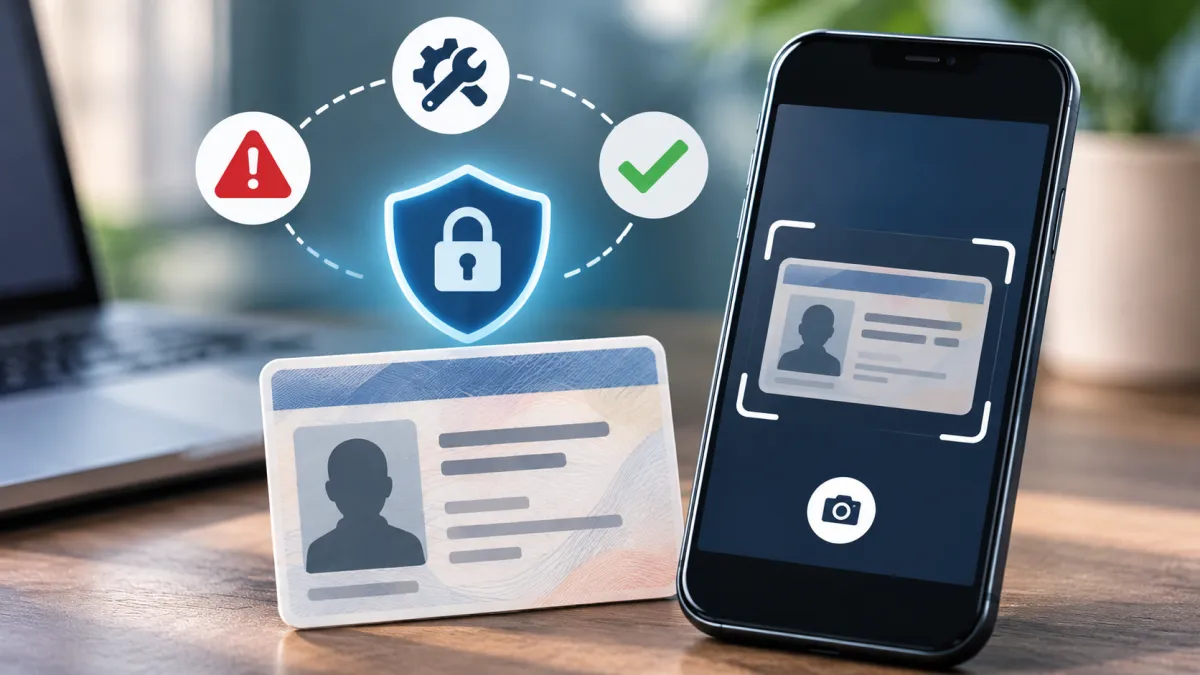
Login.gov identity verification problems can prevent you from accessing a federal government service even when you have a working account. The issue may involve a rejected ID photo, personal information that does not match records, an unsupported phone number, or too many verification attempts.
The first step is to identify which part of the process is failing. Login.gov sign-in, identity verification, and access to a government agency’s service are separate steps. Troubleshooting the wrong one can waste time or lead to unnecessary account changes.
This guide explains how to diagnose common verification errors, correct your information, improve ID photo quality, and find other verification options when they are available.
Identify Which Login.gov Problem You Are Experiencing
Login.gov may be used to sign in to participating government websites. Some agencies require an additional identity-proofing process to confirm that the person accessing the service is who they claim to be.
Use the table below to identify your issue.
| What is happening? | Likely problem | Recommended next step |
|---|---|---|
| Your ID photo is rejected or unreadable | ID photo or document verification issue | Check the ID type, photo quality, and document details |
| Your name, date of birth, SSN, or address cannot be matched | Personal information verification issue | Review the information you entered and correct errors |
| Your phone number cannot be verified | Phone identity verification issue | Check the number type and try an eligible number associated with you |
| You cannot sign in or your MFA code does not work | Account authentication issue | Troubleshoot your password or sign-in method |
| Your account is temporarily locked | Too many attempts | Wait for the lockout period to end |
| Login.gov verification succeeds but the agency service remains inaccessible | Agency-side access issue | Contact the agency directly |
| Login.gov displays a system error | Possible technical problem | Check the official service status page |
Login.gov provides identity verification and sign-in services. It does not determine whether you qualify for a government benefit, approve an application, or manage the agency’s own services.
Check Whether You Are Using an Accepted ID
One common cause of Login.gov identity verification problems is submitting an identification document that the system does not accept.
Login.gov lists these accepted ID types for online identity verification:
-
A valid U.S. driver's license
-
A state-issued identification card
-
A U.S. passport book or passport card
-
A mobile driver's license or state ID in a supported digital wallet, where available
Acceptance depends on the document and, for digital IDs, the supported state, device, and wallet.
Login.gov does not accept every document that may be used for identification in other situations. Examples of documents it does not accept for its standard identity verification include:
-
Non-U.S. passports
-
Military IDs
-
Firearm license or permit cards
-
Expired identification documents
-
Paper or temporary IDs
-
Non-U.S. identification documents
The accepted document list can change, so check the official Login.gov accepted ID types page before restarting verification.
Check the ID Before Submitting It
Before taking another photo, confirm that:
-
The ID is valid and not expired.
-
You selected the correct document type.
-
The name and date of birth on the ID are readable.
-
The document is not damaged in a way that obscures key information.
-
You are using your own identification.
If the system does not offer your document type, do not choose a different type just to get past the screen. Use another accepted document if you have one, or check whether an alternative verification method is available.
Fix Login.gov ID Photo Rejection Errors
Login.gov uses a camera-based process to capture identification documents. If the photo is blurry, poorly lit, cropped, or difficult to read, verification may fail.
You need a phone or tablet with a camera to take ID photos through Login.gov's camera tool. A computer webcam cannot be used for this photo-capture step. If you started on a computer, Login.gov may send a link to your phone or tablet so you can continue taking the photos there.
Use a Dark, Plain Background
Place your ID on a solid, dark surface. A dark background helps the camera distinguish the document from its surroundings.
Avoid:
-
White or very light backgrounds
-
Patterned or textured surfaces
-
Reflective surfaces
-
Backgrounds with objects that distract from the ID
The entire ID should be visible within the camera frame.
Improve Lighting and Remove Glare
Use a well-lit area with indirect light. Bright direct light can reflect off the document and hide printed details.
Try these adjustments:
-
Move away from direct sunlight.
-
Avoid overhead lighting that creates reflections.
-
Turn the ID slightly if glare appears.
-
Keep the document flat.
-
Hold the phone steady while capturing the image.
The goal is to make the document's information and edges easy to read.
Keep All Edges Inside the Frame
Do not crop the corners or edges of your ID. Position it within the camera guidelines and make sure the front and back are captured as requested.
If the back contains a barcode, check that the barcode is not dirty, damaged, or obscured.
Troubleshoot Camera Access
If the camera tool is not working, Login.gov recommends checking your device's operating system and browser. You may also need to clear your browser cache or cookies or allow camera access.
For iPhone or iPad users, Login.gov recommends Safari. For Android users, it recommends Chrome. Make sure the browser and operating system are up to date.
If you still cannot take the photos, check whether the in-person verification option is offered for the agency you are accessing.
Correct Personal Information Verification Errors
After the ID photo step, Login.gov may ask you to enter your Social Security number and other personal information. It checks the submitted information against public and proprietary records.
If the details do not match, you may see an error stating that Login.gov could not find records matching your personal information or address.
Start by reviewing the information carefully.
Check Your Name and Date of Birth
Make sure your first name, last name, and date of birth are entered correctly.
If Login.gov appears to have read your name or date of birth incorrectly from your ID photo, you may need to restart the ID photo process. Login.gov says you cannot change the name or date of birth listed on the identification document during this verification step.
Do not enter a different birth date or invent a variation of your name to force a match.
Review Your Social Security Number
Check each digit of your Social Security number before submitting it. A single typing error can prevent the system from matching your information.
If the number shown on the confirmation screen is incorrect, correct it before continuing.
Check Your Address
Address mismatches can happen when your current residential address differs from the address printed on your ID or when you recently moved.
Login.gov recommends checking that your address is correct and up to date. If you recently moved, it may help to try a previous address.
If your mailing address differs from your residential address, Login.gov instructs users to enter the address where they live.
Do not repeatedly submit different addresses without checking the details. Review the information displayed on the confirmation screen before submitting it again.
For additional guidance, use the official Login.gov personal information verification help page.
Resolve Login.gov Phone Verification Problems
Login.gov may ask you to verify a U.S. phone number during identity proofing. The system checks the number and other personal information against records, then sends a one-time code.
Not every phone number is eligible for identity verification.
Login.gov accepts:
-
Home phone numbers
-
Cell or mobile phone numbers
-
Landline numbers
It does not accept:
-
International phone numbers
-
Phone numbers from some U.S. territories
-
Google Voice and similar VoIP numbers
-
Premium-rate or toll numbers
-
Most prepaid phone numbers
Login.gov is more likely to verify your primary phone number or the number you use most often.
Steps to Fix Phone Number Errors
If Login.gov cannot match you to your phone number:
-
Check that you entered the number correctly.
-
Confirm that the number is an accepted type.
-
Turn off call forwarding while verifying your identity.
-
Try another eligible phone number associated with your name, if available.
-
Check whether the agency offers address verification by mail instead.
Some agencies require phone verification and do not allow mail verification as an alternative. If you cannot use an eligible phone number, contact the agency you are trying to access to ask what options it provides.
Do Not Confuse Identity Verification With a Sign-In Code Problem
A one-time code used to sign in is part of account authentication. A phone number submitted during identity proofing is used to help verify your identity.
If your issue is that you are not receiving a sign-in code, try the following:
-
Make sure your phone is turned on.
-
Turn off airplane mode.
-
Wait up to 10 minutes for the code.
-
Select the option to resend the code if necessary.
-
If you use a landline, choose a phone call rather than a text message.
-
Remember that only the newest code you receive will work.
Login.gov says sign-in codes expire after 10 minutes.
For more detail about the difference between identity verification and sign-in protection, see KnowBrook's guide to how two-factor authentication works.
Understand Login.gov Account Lockouts
Login.gov may temporarily lock your account if you make too many unsuccessful attempts. The waiting period depends on where the problem occurred.
| Lockout situation | Waiting period listed by Login.gov |
|---|---|
| Too many incorrect password attempts during sign-in | 10 minutes |
| Too many security code requests or incorrect code attempts during sign-in | 10 minutes |
| Too many attempts to verify your ID, personal information, or phone number during identity verification | 6 hours |
These are different lockouts, so make sure you understand which one applies.
What to Do if Identity Verification Is Locked
If Login.gov locks your account during identity verification:
-
Wait six hours before attempting verification again.
-
Return to the partner agency website you were trying to access.
-
Sign in using your existing Login.gov email address, password, and authentication method.
-
Continue the identity verification process when prompted.
-
Check your ID photos and personal information carefully before submitting again.
Do not create a new Login.gov account simply because identity verification is locked. Login.gov's instructions say to return to the agency website and sign in with your existing account.
Avoid Repeated Attempts Before the Waiting Period Ends
Repeatedly submitting the same incorrect information may lead to additional problems. Use the waiting period to review your ID, phone number, and personal details.
If you are unsure what caused the lockout, consult the official Login.gov account lockout help page.
Consider In-Person Identity Verification at a Participating Post Office
Login.gov offers an in-person identity verification option through the United States Postal Service for some partner agencies.
This option may be useful if you cannot complete online ID photo verification. It is not available for every agency or every user.
You may be able to select in-person verification from the beginning or switch to it after having trouble taking photos of your ID.
How the In-Person Process Works
The process generally involves:
-
Completing the required personal information and ID details online.
-
Verifying your phone number.
-
Receiving a barcode and a deadline by email.
-
Visiting a participating Post Office with the required ID and barcode.
-
Waiting for Login.gov to email the verification result.
The barcode expires seven days after you verify your information online. If the deadline passes, you must restart the process to obtain a new barcode.
What to Bring
For Login.gov's in-person identity verification process, bring:
-
The same ID you used when entering your information online
-
The barcode emailed to you by Login.gov
For this particular Post Office process, only a driver's license or state ID is accepted. A U.S. passport book or passport card and a mobile driver's license are not accepted for this in-person option, even though they may be accepted for online identity verification.
You can show the barcode on your mobile device or print the email. At the Post Office, tell the retail associate that you received a barcode from Login.gov for identity verification.
Login.gov says it will email the result within 24 hours of the visit. If you do not receive the result email after that period, contact Login.gov support.
The official Login.gov in-person verification page explains the process and requirements.
Use Mail Verification When It Is Available
Some participating agencies allow you to verify your address by mail instead of verifying your phone number. This option is not offered to every Login.gov user.
If the mail option is available, Login.gov sends a verification letter to the address it previously verified.
How Mail Verification Works
The process involves these steps:
-
Confirm that you want to request a letter to your verified address.
-
Re-enter your Login.gov password to save the information you have verified.
-
Wait for the letter to arrive.
-
Sign in again and enter the verification code from the letter.
Login.gov sends letters by USPS First-Class Mail on the next business day. The letter typically takes five to ten business days to arrive. The verification code expires 21 days after you submit the request.
What to Do if the Letter Does Not Arrive
If your letter does not arrive within the expected five-to-ten-business-day period, or your code expires, you may request another letter.
If you need to access the agency service before the letter arrives, contact the agency directly. Mail verification is an alternative process, not a guarantee of immediate access.
For the latest instructions, visit Login.gov's address verification by mail help page.
Check Login.gov Service Status Before Troubleshooting Further
Sometimes a verification problem is caused by a temporary technical issue rather than incorrect information.
Before repeating the process, check the official Login.gov Status Page.
The status page reports incidents involving Login.gov services, including sign-in, identity proofing, and customer support.
If an incident is reported:
-
Avoid repeatedly submitting the same verification information.
-
Wait until the affected service is restored.
-
Follow any instructions posted on the status page.
-
Retry the process after the incident is resolved.
If no incident is listed, the problem may be related to your account, device, ID document, or information entered during verification. The status page is updated over time, so do not rely on an earlier status report as a permanent indication that the service is working.
Know When to Contact Login.gov or the Government Agency
Choosing the correct support contact can save time. Login.gov and the government agency you are trying to access handle different types of problems.
| Problem | Who to contact |
|---|---|
| Login.gov sign-in issue | Login.gov support |
| Identity verification error | Login.gov help and support |
| Login.gov account lockout | Login.gov help |
| Government application status | The government agency |
| Benefit eligibility or payment issue | The government agency |
| Agency-specific account permissions | The government agency |
| Agency website or service access problem after Login.gov verification | The government agency |
Login.gov can help with issues related to signing in and its identity-verification process. It cannot determine agency application status, eligibility, benefits, or other agency-specific matters.
Contact Login.gov Support
Login.gov lists the following support phone number:
(844) 875-6446
The official contact page currently lists phone support as available 24 hours a day, seven days a week. Support availability can change, so check the Login.gov Contact page for current details.
When contacting support, explain the specific step where verification fails. For example, mention whether the ID photo is rejected, your personal information cannot be matched, or your account is locked.
Do not send your full Social Security number, password, or verification codes through an untrusted message or an unofficial support channel.
Contact the Agency for Alternative Access
If you cannot complete Login.gov identity verification, contact the agency whose service you are trying to use.
Login.gov's agency guidance describes alternative access methods for users who cannot complete identity proofing. The available process is maintained by the agency and depends on the service.
Explain that you have attempted Login.gov identity verification and ask whether the agency offers another way to access its service.
Protect Yourself From Fake Login.gov Verification Messages
Identity verification involves sensitive information, including identification documents and your Social Security number. Be careful when responding to emails, text messages, or websites claiming to help you resolve Login.gov problems.
Use the official Login.gov website by typing its address directly into your browser or navigating from the government agency's website.
Be cautious of messages that:
-
Ask you to send your password or one-time code.
-
Direct you to an unfamiliar website to upload your ID.
-
Threaten immediate loss of benefits unless you act through a suspicious link.
-
Claim they can bypass Login.gov's identity-verification requirements for a fee.
-
Use official-sounding language but come from an unrelated domain.
If you suspect that you have clicked a phishing link, KnowBrook's guide on what to do if you clicked a phishing link explains steps you can take to protect your accounts.
Conclusion
Login.gov identity verification problems usually involve one of several steps: ID photo capture, personal information matching, phone verification, or account security restrictions. Identifying the exact failure point is the most useful first step.
Check that your ID is accepted, capture clear photos, verify your name and address carefully, and use an eligible phone number. If your account is locked, follow the specified waiting period instead of repeatedly submitting information.
Some users may have access to in-person USPS verification or mail verification, but these options depend on the participating agency. If Login.gov verification succeeds and you still cannot access a government service—or if you cannot complete identity proofing—contact the agency directly to ask about its available access methods.
Use official Login.gov support for account and verification troubleshooting, and the agency's support for application, benefit, eligibility, and service-access questions.
Frequently asked questions
1. Can Login.gov support manually verify my identity or bypass identity verification?
Login.gov support can help troubleshoot account sign-in and identity-verification problems, but you should not assume that support can manually verify your identity or bypass the required identity-proofing process. If you cannot complete verification, contact the government agency you are trying to access and ask whether it offers another way to access its service. The available alternative depends on the agency.
2. What should I do if I can sign in to Login.gov but cannot access a government service?
If you can sign in and complete identity verification but still cannot access a government service, the problem may be related to the agency’s account, permissions, application status, or service. Contact the agency directly for help with eligibility, benefits, applications, or agency-specific access issues.
3. How can I check whether Login.gov is experiencing a technical problem?
Check the official Login.gov Status Page at https://status.login.gov/ for reported service disruptions or technical incidents. If no incident is listed, try again later and continue troubleshooting your account or verification steps.
4. Does Login.gov share my verified identity information with a government agency?
Login.gov shares verified identity information with a participating government agency when required for the service and after you provide the applicable consent. The information shared depends on the agency and the verification process.
5. Can I use Login.gov identity verification for any government agency?
No. Login.gov identity verification is available only for participating government agencies and services. The verification requirements and alternative methods can differ depending on the agency you are accessing.
6. What happens if I cannot complete Login.gov identity verification online?
Depending on the participating agency and your eligibility, you may be offered an alternative such as in-person verification at a participating U.S. Post Office or verification by mail. These options are not available to every user. Contact the agency if you cannot complete the available verification methods.

Maya Thompson writes practical technology content covering consumer technology, software, online services, digital tools, cybersecurity basics, and everyday technology decisions. She focuses on explaining technical topic...