How to Uninstall an App on Windows 11 When It Won’t Uninstall
Learn what to do when a Windows 11 app will not uninstall, including alternate uninstall methods, Repair or Reset, troubleshooting, Microsoft Store options, and WinGet.
In this article
- Why Won’t an App Uninstall on Windows 11?
- Try the Normal Windows 11 Uninstall Methods First
- Uninstall the app from Settings
- Try uninstalling from the Start menu
- Use Control Panel
- What If the Uninstall Button Is Missing or Doesn't Work?
- Try Repair or Reset When the App Is Malfunctioning
- What to Do When Windows Reports an Uninstall Error
- Should You Delete the App's Folder Manually?
- If the App Came From the Microsoft Store
- Can You Use WinGet to Uninstall the App?
- What If the Software Is Suspicious or Malicious?
- What If None of These Methods Work?
- How to Confirm the App Is Really Gone
- A Safer Windows 11 Uninstall Troubleshooting Order
- Before You Remove an Important Application
- Conclusion
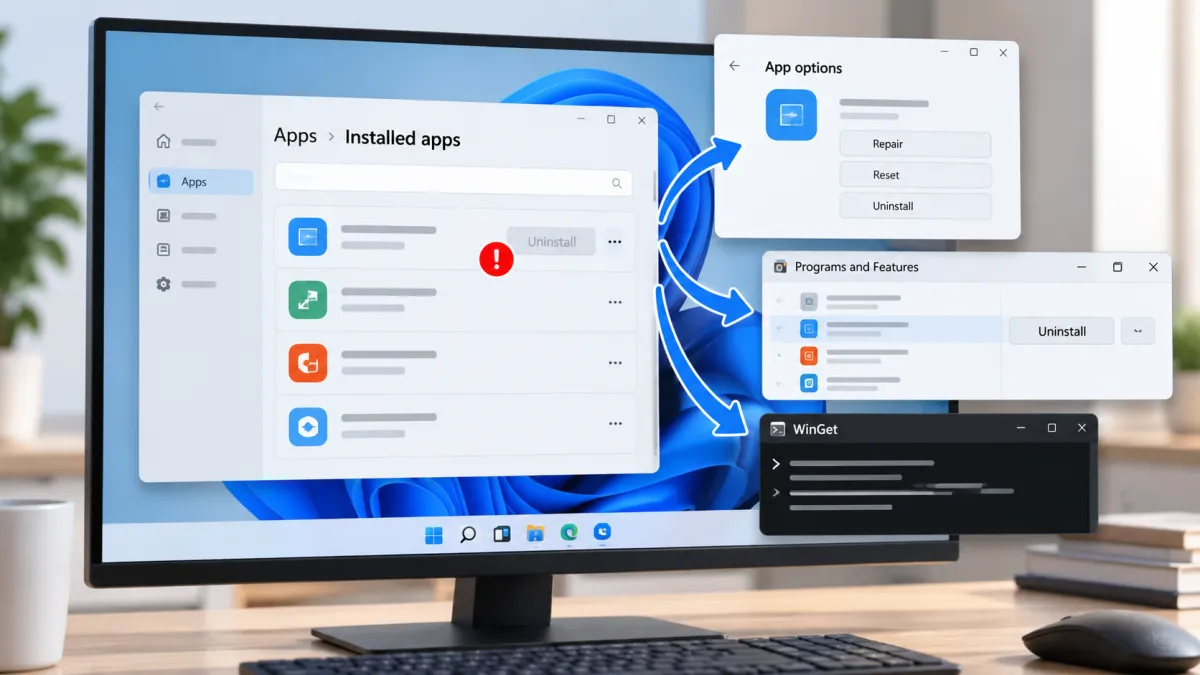
If an app will not uninstall on Windows 11, you usually do not need to delete its files manually or start changing registry entries. Windows provides several supported ways to remove software, and the best method depends on how the app was installed and what happens when you try to remove it.
Start with the normal uninstall option in Settings or the Start menu. If that fails, try Control Panel, then Repair or Reset when those options are available. For supported applications, WinGet can provide another removal method. If the software appears suspicious, treat it as a security issue rather than an ordinary uninstall problem.
The important thing is to work through these options in order instead of immediately deleting the program's folder.
Why Won’t an App Uninstall on Windows 11?
An application may fail to uninstall for several reasons. Windows may not be able to access the program's uninstaller, the installation information may be damaged, or the software may have been installed through a method that uses a different removal process.
The app may also still be running or may have background components active. In other situations, the program may simply not support removal through the Windows Settings interface.
Microsoft notes that different apps and programs can have different uninstall methods, and some built-in Windows applications cannot be uninstalled normally.
The first goal should therefore be to identify another supported removal path rather than trying to force Windows to remove the software.
Try the Normal Windows 11 Uninstall Methods First
Before moving to advanced troubleshooting, try the standard Windows removal options. One method may work even when another does not.
Uninstall the app from Settings
For most supported applications, Settings is the easiest place to start.
-
Open Start.
-
Select Settings.
-
Select Apps.
-
Open Installed apps.
-
Find the application you want to remove.
-
Select the three-dot menu next to it.
-
Select Uninstall.
-
Follow any instructions provided by the application's uninstaller.
If the uninstall process completes, restart Windows if the application requests it and then check that the program is no longer installed.
Microsoft's current Windows 11 instructions use Settings > Apps > Installed apps for this process. Microsoft also notes that some applications cannot be uninstalled from Settings and may need to be removed through Control Panel instead.
Try uninstalling from the Start menu
Some applications can also be removed directly from the Start menu.
Open Start, select All apps, locate the program, right-click it, and choose Uninstall when that option is available.
If Windows provides the option but the uninstall process still fails, move to the next method rather than repeatedly clicking the same button.
Use Control Panel
Control Panel remains useful because some traditional Windows desktop programs use the older Programs and Features interface.
To try it:
-
Search for Control Panel from the Windows taskbar.
-
Open Control Panel.
-
Select Programs.
-
Select Programs and Features.
-
Locate the program.
-
Right-click it.
-
Select Uninstall or Uninstall/Change.
-
Follow the program's removal instructions.
This route is particularly useful when an application does not provide the expected uninstall option in Settings. Microsoft specifically recommends Control Panel for programs that cannot be removed through the Settings app.
What If the Uninstall Button Is Missing or Doesn't Work?
If you cannot find an uninstall option, do not assume that deleting the application's installation folder is the solution.
First determine which type of application you are dealing with.
A traditional desktop program may appear in Control Panel even when its Settings entry is limited. A Microsoft Store application can have different troubleshooting options. Some built-in Windows components are not intended to be removed through the normal process.
If the program appears in Settings but clicking Uninstall produces an error, restart the PC and try again. A restart can clear temporary processes that may be interfering with the removal process.
Microsoft's Windows troubleshooting guidance recommends restarting the PC as an early step when a desktop application cannot be installed, updated, or uninstalled.
If the problem continues, proceed to Repair or Reset when those options are available.
Try Repair or Reset When the App Is Malfunctioning
Repair and Reset can be useful when the application itself is damaged or behaving incorrectly.
In Windows 11:
-
Open Start > Settings > Apps > Installed apps.
-
Find the application.
-
Open its menu.
-
Select Advanced options if available.
-
Select Repair.
-
Try the uninstall process again.
If Repair does not solve the problem, Windows may provide a Reset option. Reset is more extensive and can remove the application's data or settings, depending on the application.
Not every application supports Repair or Reset. Microsoft specifically states that these options are not available for all apps and programs.
The purpose of this step is not to replace uninstalling. It is to give a damaged application a chance to return to a state where its normal removal process works.
For example, if an app's files or configuration have become corrupted, its uninstall process may fail. Repair may correct the application without requiring a more aggressive removal method.
What to Do When Windows Reports an Uninstall Error
The exact error matters. If Windows tells you that it cannot find the uninstaller, that the removal failed, or that the application could not be removed, avoid immediately deleting the program's folder.
Instead, work through the supported options:
-
Restart the computer.
-
Try uninstalling through Settings.
-
Try the Start menu if available.
-
Try Control Panel and Programs and Features.
-
Use Repair or Reset if Windows provides those options.
-
Follow any Windows troubleshooting guidance that appears.
-
Check the software publisher's official support documentation if the program still refuses to uninstall.
Windows 11 may recommend troubleshooting when installation or removal fails. Microsoft also advises contacting the application's publisher when the standard troubleshooting steps do not resolve the problem.
This approach is safer than trying random registry cleaners or third-party removal utilities without knowing what they will change.
Should You Delete the App's Folder Manually?
Usually, no.
Suppose a program is installed in a folder under Program Files, and Windows refuses to uninstall it. You might be tempted to open File Explorer, find the folder, and delete everything inside it.
That can make the visible program files disappear, but it does not necessarily perform a proper uninstall.
An application may have other components, services, configuration information, shortcuts, or uninstall information elsewhere on the system. Deleting one folder does not guarantee that all of those components are removed.
It can also make the situation harder to fix because the original uninstaller may depend on files you just deleted.
For that reason, manual folder deletion should not be your normal first-line solution. Use Windows' supported uninstall methods or the software publisher's official removal instructions instead.
The same caution applies to editing the Windows registry just to remove an application. Registry changes can have consequences beyond the program you are trying to remove, so they should not be treated as a routine troubleshooting step for an ordinary uninstall problem.
If the App Came From the Microsoft Store
Microsoft Store applications can follow a different troubleshooting path from traditional desktop software.
If the application came from the Microsoft Store and is not behaving normally, first make sure Windows and the Store application are up to date. Then check the application's available management options in Windows.
Repair or Reset may be available for some Store applications. If the app remains problematic, Microsoft's Store-specific troubleshooting guidance can provide additional steps.
The important distinction is that a Store app should not automatically be treated like a traditional desktop installer. The installation method can affect which repair and removal options Windows provides.
If the app is supported by the Store and can be reinstalled from your Microsoft account's library, reinstalling can sometimes be useful when the application itself is damaged. However, if your actual goal is to remove the application, use the available uninstall option rather than simply deleting files associated with it.
Can You Use WinGet to Uninstall the App?
Yes, WinGet can provide another option for applications that it can accurately identify and support.
WinGet is Microsoft's Windows Package Manager. Its uninstall command is designed to remove a specified application. Microsoft says the command requires the application to be identified accurately; if the search is ambiguous, WinGet may ask you to narrow the selection.
For example, you can first use WinGet to identify installed applications and then use an appropriate uninstall command.
A basic command is:
winget uninstallDepending on what WinGet finds, you may need to specify the application's name or ID. Microsoft supports options such as --name, --id, and --exact for narrowing the application being removed.
The important point is that WinGet is not a universal fix for every uninstall problem. You should verify the application listed by WinGet before removing it.
If multiple applications match your search, do not simply choose one at random. Narrow the identification until you are confident that the selected program is the one you intend to remove.
WinGet can also list applications that were not originally installed through Windows Package Manager, so seeing an application in its results does not necessarily mean WinGet originally installed it.
For users who are comfortable with Windows Terminal or Command Prompt, WinGet can be a useful additional option. For beginners, however, Settings and Control Panel are usually easier starting points.
What If the Software Is Suspicious or Malicious?
A suspicious application should be handled differently from a normal program that simply has a broken uninstaller.
Warning signs can include software you do not remember installing, repeated unwanted advertisements, unexpected browser behavior, unexplained system activity, or security warnings.
Do not rely on manually deleting the program's folder in this situation.
Windows 11 includes security features that can help identify and respond to unwanted software. Microsoft recommends using Windows Security and Microsoft Defender Antivirus to scan the computer when unwanted software is suspected. Microsoft also describes Defender Offline as an option when potentially unwanted or malicious software needs additional investigation.
A sensible approach is:
-
Disconnect from the internet if you have a reason to believe the computer is actively compromised.
-
Open Windows Security.
-
Update the security intelligence if necessary.
-
Run an appropriate malware scan.
-
Follow the security tool's recommended action.
-
If the software remains installed, check the publisher's official removal instructions when the publisher is legitimate and identifiable.
-
Consider additional recovery options if the system remains compromised.
Do not install an unfamiliar "uninstaller" simply because a search result promises to remove malware. A suspicious application can be accompanied by other unwanted software, and adding another unknown program can make the situation worse.
Microsoft also recommends downloading applications from trusted sources and keeping security software and Windows up to date.
Security software deserves additional caution. Some antivirus and security products use special components that can prevent a normal uninstall from completing. Microsoft notes that some security software may require instructions from the publisher if it cannot be fully removed through the normal Windows process.
What If None of These Methods Work?
If Settings, Start, Control Panel, Repair or Reset, and an appropriate WinGet attempt all fail, the next step should usually be application-specific support.
Look for the software publisher's official documentation and search specifically for its uninstall or removal instructions.
This matters because some applications install additional components that require their own removal process. Security products, drivers, specialized business software, and other applications may not behave like ordinary desktop programs.
Do not assume that every program should be removed using the same Windows procedure.
If the publisher provides an official removal utility, follow the publisher's instructions carefully and make sure you are using the legitimate source.
For a serious Windows-wide software problem that affects multiple applications, broader system repair may eventually be appropriate. However, resetting Windows should be treated as a last-resort recovery option rather than the normal answer to a single stubborn application. A Windows reset can remove applications and settings, and depending on the selected reset option, personal files can also be affected. Microsoft recommends backing up important files before resetting a PC.
How to Confirm the App Is Really Gone
After an uninstall appears to succeed, take a moment to verify the result.
Check Settings > Apps > Installed apps and search for the program again. You can also check the Start menu and, for traditional desktop software, Control Panel's Programs and Features.
If the application no longer appears, the normal uninstall process has likely completed.
You do not need to delete every folder that happens to contain the application's name. Some programs intentionally leave user data, preferences, logs, or other files behind, and removing those files is a separate decision.
If your reason for uninstalling is to free up storage, check your available disk space after the process. Removing an unwanted application can help recover storage and reduce unnecessary background activity.
If you are cleaning up an older Windows PC, you can also review free up disk space on Windows 11 for additional storage-cleanup ideas.
A Safer Windows 11 Uninstall Troubleshooting Order
When an app refuses to uninstall, the following order keeps the process relatively simple:
| Step | What to try | When it makes sense |
|---|---|---|
| 1 | Restart Windows | The app or its background processes may be interfering |
| 2 | Settings > Apps > Installed apps | The standard Windows 11 uninstall method |
| 3 | Start > All apps | Useful when the app provides an uninstall option there |
| 4 | Control Panel > Programs and Features | Useful for traditional desktop programs |
| 5 | Repair or Reset | Useful when the app is damaged and these options are available |
| 6 | Windows troubleshooting guidance | Useful when Windows reports a removal problem |
| 7 | Microsoft Store troubleshooting | For Store applications |
| 8 | WinGet | For applications that WinGet can accurately identify and support |
| 9 | Publisher's official removal instructions | For stubborn or specialized software |
| 10 | Security scan | When the application appears suspicious or potentially malicious |
This order is more useful than jumping directly to advanced system changes because it starts with the least disruptive supported options.
Before You Remove an Important Application
Uninstalling software is usually straightforward, but some applications contain data that you may want to keep.
Before removing an application that contains documents, projects, saved configurations, photos, databases, or other important information, make sure the information is backed up.
Do not assume that uninstalling an application will preserve every piece of data associated with it. Application behavior varies.
If you are preparing to move to another computer, preserving your files before removing old software is especially important. If needed, you can review moving your files to a new PC before removing software from the old machine.
The same principle applies when uninstalling software that you may need to reinstall later. Keep any required account information, license details, installation files, or project data that you are legitimately entitled to use.
Conclusion
When an app will not uninstall on Windows 11, the safest approach is to work through Microsoft's supported removal methods rather than manually deleting files.
Start with Settings > Apps > Installed apps, then try the Start menu or Control Panel > Programs and Features if the first option does not work. If Windows provides Repair or Reset, those options can help when the application's installation is damaged. Windows may also provide troubleshooting guidance when removal fails.
For supported applications, WinGet can provide another removal route, but make sure you have identified the correct application before running an uninstall command. If the software appears suspicious, switch from ordinary uninstall troubleshooting to Windows Security and malware-removal steps.
Most importantly, avoid treating manual folder deletion or registry editing as the default solution. A stubborn uninstall problem usually has a safer escalation path, and following that path can remove the application without creating a larger Windows problem.
Frequently asked questions
Can I uninstall a Windows 11 app if it does not appear in Settings?
If an app does not appear in Windows 11 Settings, check whether it can be removed from the Start menu or through Control Panel. Different types of apps can have different uninstall options.
What should I do if Windows says it cannot find the uninstaller?
If Windows cannot find an application's uninstaller, the normal removal process may be damaged or incomplete. Try another supported uninstall method and, if necessary, use Microsoft's troubleshooting guidance or the software publisher's official removal instructions.
Is it safe to delete a program's folder when it won't uninstall?
No. Deleting an application's folder is not the same as properly uninstalling it and can leave behind components, services, or uninstall information. Use a supported uninstall method instead.
Can WinGet uninstall a program that Windows Settings cannot remove?
WinGet can uninstall applications that it can accurately identify and support. Before using it, confirm that the listed application is the program you actually want to remove.
Does uninstalling an app delete my personal files?
Not necessarily. What happens to personal files and application data varies by software. Back up important documents, projects, and other data before uninstalling an application.
Why can't some Windows 11 apps be uninstalled?
Some Windows applications, including certain built-in components, have different removal restrictions or methods. Microsoft notes that some apps cannot be uninstalled through the normal Settings process.
What should I do if the app might be malware?
Treat potentially malicious software differently from an ordinary uninstall problem. Use Windows Security and follow Microsoft or the software vendor's official removal guidance rather than manually deleting application files.

Maya Thompson writes practical technology content covering consumer technology, software, online services, digital tools, cybersecurity basics, and everyday technology decisions. She focuses on explaining technical topic...