How to Check If Your Internet Provider Has an Outage in Your Area
Not sure why your internet stopped working? Learn how to check for an outage using official resources from major US internet providers, verify whether your address is affected, report an unlisted problem, and find out what to do while waiting for service to return.
In this article
- How to Check If Your Internet Provider Has an Outage in Your Area
- Official Internet Outage Resources for Major US Providers
- Xfinity
- AT&T
- Spectrum
- Verizon Fios
- Cox
- T-Mobile Home Internet
- Google Fiber
- How to Check Whether an Outage Affects Your Exact Address
- Use your full service address when available
- Understand the limitations of ZIP-code searches
- Check account notifications
- Look for a restoration estimate
- What If Your Provider Reports No Outage?
- 1. Check whether all devices are affected
- 2. Check the equipment indicators
- 3. Check the physical connections
- 4. Compare Wi-Fi with a wired connection
- 5. Follow provider-specific troubleshooting instructions
- How to Report an Internet Outage That Is Not Listed
- Request a support or repair reference number
- Keep a record of repeated interruptions
- How to Tell an Official ISP Outage From Independent Reports
- Official provider outage information
- Independent outage-reporting websites
- Social media and community discussions
- What to Do While Waiting for Internet Service to Return
- Use a mobile hotspot if available
- Prioritize important online tasks
- Check whether other services are affected
- Keep essential information available offline
- Avoid repeatedly restarting your equipment
- What to Check After the Provider Restores Service
- When to Escalate an Unresolved Internet Service Problem
- Conclusion

When your internet suddenly stops working, the first question is whether the problem is inside your home or somewhere in your provider's network. Checking for an internet outage in your area can help you avoid unnecessary troubleshooting and understand when service might return.
The quickest way to investigate is to check your internet service provider's official outage resource using your service address or account information. You can then compare that information with independent outage reports, contact your provider if no problem is listed, and follow the provider's instructions while waiting for service to return.
This guide explains how to check outage information for major US internet providers, what to do when your address is not listed as affected, and which resources can help you understand a service interruption.
How to Check If Your Internet Provider Has an Outage in Your Area
Start with your provider's official website, app, or customer support channel. Look for an outage checker, service-status page, or troubleshooting section.
Follow these steps:
-
Identify your internet provider. Check your billing statement, account dashboard, or internet equipment if you are unsure which company supplies your service.
-
Open the provider's official outage resource. Use the company's website or mobile app rather than relying only on search results or third-party websites.
-
Enter your service information. Depending on the provider, you may need your full service address, ZIP code, account login, or phone number.
-
Review the outage status. Look for information about affected services, service areas, reported problems, and estimated restoration times.
-
Check for updates. If the provider reports an outage, return to the status page or app later to see whether the situation has changed.
-
Contact the provider if no outage appears. A problem can affect an individual connection or a small area without immediately appearing on a public status page.
An address-based check is generally more useful than relying on a broad ZIP-code search. Internet interruptions can affect one neighborhood, street, or group of customers without affecting everyone in the same ZIP code.
If the provider confirms an outage affecting your service, you usually do not need to perform extensive troubleshooting on your equipment. Follow the provider's instructions and wait for updates.
Official Internet Outage Resources for Major US Providers
Different internet companies provide different ways to check service interruptions. Some offer address-based outage information, while others direct customers to account support, apps, or troubleshooting tools.
The following resources can help you check service information for major providers in the United States.
Xfinity
Official resource: Xfinity Outage Support
Xfinity customers can use the company's outage support resource to check whether a service interruption is affecting their area.
Start by opening the official support page and following the available service-status instructions. An address lookup can help identify whether the reported problem affects your location. Some account-related features may require signing in.
Xfinity customers can also use the provider's app and available account notifications to follow service updates.
When to use it: If your Xfinity internet connection suddenly stops working, check the official outage information before restarting equipment or changing network settings.
AT&T
Official resource: AT&T Outage Checker
AT&T provides an official outage-checking resource for customers who want to investigate service interruptions.
Open the outage page and follow the instructions for checking your service. Depending on the information requested, you may need to verify your account or phone number.
If an outage is reported, review the available service information and check again later for updates. If no interruption appears, contact AT&T through its official support channels.
When to use it: AT&T customers can start here when their home internet stops working unexpectedly or when they want to check whether a reported problem affects their service.
Spectrum
Official resource: Spectrum Internet and Service Troubleshooting
Spectrum provides support information to help customers investigate service problems and follow the appropriate steps after an outage.
Use the official support resource and available account or app features to check your service information. If an outage is reported, follow Spectrum's instructions rather than immediately trying every troubleshooting method.
Pay particular attention to the type of equipment installed at your home. Spectrum's guidance distinguishes fiber equipment from other setups, and customers should not manually troubleshoot fiber equipment using ordinary reboot instructions.
When to use it: Check Spectrum's support information when your internet stops working or when service has not returned as expected after a reported interruption.
Verizon Fios
Official resource: Verizon Service Outage Support
Verizon provides an official service-outage resource for customers who want to check whether a network problem is affecting their connection.
Sign in to your Verizon account and review the service information available for your location. Depending on the situation, the account may provide details such as an outage report, repair ticket information, or an estimated repair time.
If an estimated restoration time appears, treat it as an estimate rather than a guaranteed deadline. Repair work can take longer when technicians discover additional damage or complications.
When to use it: Verizon Fios customers can use this resource to check reported service interruptions and review available repair updates.
Cox
Official resource: Cox Outage Information
Cox provides outage information to help customers investigate whether a network interruption is affecting their service area.
Use the official page and follow the available instructions for checking your address or account. If Cox reports an active network outage, follow the provider's guidance while waiting for service restoration.
One important point: Cox advises customers not to reset their equipment during an active network outage. Repeatedly restarting a modem or gateway is unlikely to resolve a problem that exists in the provider's network.
When to use it: Check Cox's outage information before attempting equipment troubleshooting when your connection suddenly stops working.
T-Mobile Home Internet
Official resource: T-Mobile Home Internet Customer Support
T-Mobile Home Internet customers can use official support information and the T-Life app to investigate gateway and network connection problems.
The app's diagnostic features can help customers examine their home internet gateway and connection. However, these diagnostics should not be treated as a public neighborhood outage map. They help investigate the customer's connection rather than providing a universal list of every affected address.
If the diagnostics do not explain the problem, contact T-Mobile support and ask whether a network interruption is affecting your service location.
When to use it: Use T-Life diagnostics when your T-Mobile Home Internet gateway is not providing a normal connection or when you need help identifying a connection problem.
Google Fiber
Official resource: Google's Internet Service Provider Resource Directory
Google provides an internet service provider resource directory that can help users find relevant provider information, including resources for supported services such as Google Fiber.
If you use Google Fiber, follow the available official support and outage-checking options for your service. Check your account or app for information specific to your connection.
The directory is a starting point for finding provider resources, not a universal live outage checker for every internet company.
When to use it: Google Fiber customers can use official Google support resources to investigate connection problems and find relevant service information.
How to Check Whether an Outage Affects Your Exact Address
A general outage announcement does not always tell you whether your own connection is affected. An internet provider may report a problem in a city or service area while only some customers experience an interruption.
For this reason, checking your exact service address is often the best next step.
Use your full service address when available
If your provider offers an address-based outage checker, enter the address where the internet service is installed.
Do not automatically use your billing address if it is different from your service location. The provider needs to identify the connection associated with the affected property.
Some services may instead request an account login or phone number. Follow the provider's specific instructions.
Understand the limitations of ZIP-code searches
A ZIP code can help narrow down a general service area, but it does not always identify the exact network connection serving your home.
For example, two households in the same ZIP code may use different internet providers, equipment, or network infrastructure. One street may experience a service interruption while another nearby street continues to have internet access.
That is why a provider's address-based information, when available, is more useful than assuming that every customer in a ZIP code has the same service status.
Check account notifications
Your provider may send outage or restoration notifications through its app, text messages, email, or account dashboard.
Make sure your contact information is current and that you have enabled any available service notifications. If your provider offers outage alerts, these can help you follow the situation without repeatedly checking the website.
Look for a restoration estimate
Some providers display an estimated repair or restoration time. This information can help you plan, especially if you work from home or depend on the connection for important tasks.
However, a restoration estimate is not a guarantee. The provider may revise it as technicians investigate the cause, access affected equipment, or discover additional work.
If the estimated time passes and your connection is still unavailable, check for a newer update or contact support.
What If Your Provider Reports No Outage?
A provider's outage checker may show that service is operating normally even when your home internet is not working.
That does not necessarily mean the problem is your router. Some interruptions are too localized to appear immediately in a provider's public outage information.
Use a simple troubleshooting process to narrow down the cause.
1. Check whether all devices are affected
Try connecting more than one device to your home network.
If your phone, computer, television, and other connected devices all lose internet access, the issue may involve your router, modem, gateway, or provider connection.
If only one device has a problem, investigate that device first. Its Wi-Fi settings, network adapter, software, or saved network configuration may be responsible.
2. Check the equipment indicators
Look at the status lights on your modem, router, or gateway. Their meaning varies by manufacturer and equipment model, so consult the device instructions or your provider's support information.
A connection warning may indicate that the equipment cannot establish a connection with the provider's network. However, an indicator light alone cannot always tell you whether the problem is inside your home or outside it.
Avoid guessing based only on a light's color or blinking pattern.
3. Check the physical connections
If your provider has not reported an outage, check whether the equipment's power and accessible cables are connected securely.
Look for an accidentally disconnected Ethernet cable or power cord. Do not disconnect fiber connections, open network equipment, or handle provider-owned wiring unless the provider specifically instructs you to do so.
4. Compare Wi-Fi with a wired connection
If you have a computer and a suitable Ethernet connection, test whether it can access the internet through a wired connection.
If Ethernet works but Wi-Fi does not, the issue may involve your wireless network rather than the provider's internet connection.
If neither connection works, the problem may involve the modem, gateway, provider network, or another connection issue.
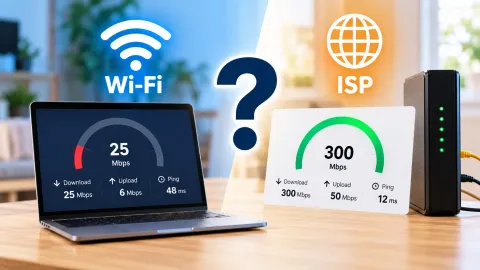
For a more detailed explanation, see how to distinguish a Wi-Fi problem from an internet connection problem.
5. Follow provider-specific troubleshooting instructions
Do not assume that restarting or factory-resetting every device is the correct response.
Some providers recommend particular troubleshooting steps, while others advise customers to leave equipment alone during an active network interruption.
For example, Cox advises against resetting equipment during an active network outage. Spectrum also provides specific guidance for its fiber equipment.
If your provider reports an outage, follow its instructions. If no outage is listed, ask support whether it recommends restarting your particular modem or gateway.
A factory reset is especially different from a normal restart. It can erase network settings and create additional setup work, so do not perform one unless your provider or equipment manufacturer specifically recommends it.
How to Report an Internet Outage That Is Not Listed
If your internet remains unavailable but the provider's outage page shows no problem, report the issue directly.
A missing outage listing does not prove that your connection is working normally. The interruption could affect a single property, a small group of customers, or equipment that has not yet been included in a broader outage report.
When contacting support, provide useful details instead of simply saying that the internet is down.
Include:
-
Your full service address.
-
Your account information, when requested through an official support channel.
-
The approximate time the connection stopped working.
-
Whether all connected devices are affected.
-
Whether the modem or gateway shows an unusual status indicator.
-
Any troubleshooting steps you have already completed.
-
Whether the connection works through Ethernet, if you have tested it.
Ask the representative to check for a localized network problem or an issue affecting your individual connection.
Request a support or repair reference number
If the provider creates a service ticket or repair request, save the reference number.
This can make follow-up easier because you can refer to the existing report instead of explaining the entire problem again.
Also ask whether the provider has identified a cause, whether a technician visit is necessary, and whether any restoration estimate is available.
If the provider says that no outage exists, explain what you have already checked and ask what the next diagnostic step should be.
Keep a record of repeated interruptions
If the service problem happens repeatedly, record the dates, approximate start and end times, and any ticket numbers.
A simple record can help you explain the pattern to customer support. It may also be useful if you later need to raise a billing or service complaint.
Avoid assuming that every brief interruption qualifies for a credit. Ask your provider about its applicable service policies and whether your specific situation meets the requirements.
How to Tell an Official ISP Outage From Independent Reports
When your internet stops working, you may find outage reports on social media, discussion forums, or third-party websites.
These sources can provide useful clues, but they do not all have the same level of authority.
Official provider outage information
An ISP's own website, app, or customer support channel is the primary place to check for an official service update.
Depending on the provider, its information may include:
-
A reported service interruption.
-
The affected service or area.
-
An outage or repair ticket.
-
A restoration estimate.
-
Updates about repair progress.
Official information is generally the best starting point because the provider operates the network and handles the repair.
However, a public outage page may not show every individual connection problem immediately. Information can also change as the provider investigates the issue.
Independent outage-reporting websites
Downdetector is an independent service that collects user reports about problems with websites, apps, and service providers.
It can help you see whether other customers are reporting similar problems around the same time.
For example, if your connection stops working and reports for your ISP rise noticeably, that may suggest a wider service issue.
But an increase in user reports is not the same as an official outage confirmation. Reports can reflect individual connection problems, device issues, or other causes.
Use independent reporting as supporting information, then check your provider's official resources.
Social media and community discussions
Customers sometimes share outage experiences on social platforms or local community groups before a provider posts a public update.
These discussions can help you recognize that other households may be affected. However, posts may be outdated, inaccurate, or related to a different service area.
Check the date, location, and provider before treating a post as relevant to your situation.
A practical approach is to compare three things:
| Source | What it can tell you | How to use it |
|---|---|---|
| Official ISP website or app | Provider-reported service information | Primary outage check |
| Downdetector | Independent customer reports and reporting trends | Supporting evidence |
| Social media or local groups | Reports from other customers | Additional context, not confirmation |
If all three indicate a possible problem, the evidence for a wider interruption becomes stronger. Still, rely on your provider for official repair information and instructions.
What to Do While Waiting for Internet Service to Return
Once your provider confirms an outage, the best next step is usually to avoid unnecessary changes to your home network and prepare for a temporary loss of service.
The right approach depends on how long the interruption lasts and what you need the connection for.
Use a mobile hotspot if available
If your cellular plan includes hotspot access, you may be able to connect a laptop or another device through your phone.
Before using it, check your mobile plan's hotspot allowance, speed restrictions, and data limits. Some plans treat hotspot usage differently from ordinary phone data.
A hotspot may be useful for email, basic browsing, and short work sessions. It may be less suitable for large downloads, video calls, or extended streaming if your plan has limited data.
Prioritize important online tasks
If you have limited alternative internet access, focus on essential tasks first.
For example:
-
Send urgent work messages.
-
Download files needed for an upcoming meeting.
-
Check important account notifications.
-
Complete time-sensitive online forms.
-
Inform coworkers, clients, or teachers if your connection is unavailable.
Avoid unnecessary large downloads or streaming when you are relying on a limited mobile connection.
Check whether other services are affected
Home internet interruptions can affect more than web browsing.
Depending on how your devices and services are configured, you may also lose access to:
-
Wi-Fi calling.
-
Internet-connected security cameras.
-
Smart-home devices.
-
Streaming services.
-
Online gaming.
-
Cloud-connected equipment.
Some devices may have cellular backup or offline functions, while others depend entirely on the home internet connection.
If you rely on an internet-connected security or monitoring service, check its provider's instructions for what happens during a connection interruption.
Keep essential information available offline
If you regularly work or study from home, consider keeping important files accessible without an internet connection.
For example, save necessary documents locally, download work materials in advance, and keep important contact information available on your phone.
This will not prevent an outage, but it can reduce disruption when your connection is unavailable.
Avoid repeatedly restarting your equipment
Repeatedly turning your modem, router, or gateway off and on will not repair a provider-side network problem.
It may also interrupt the equipment's connection process while the provider is restoring service.
Follow the ISP's instructions instead. If the provider asks you to restart equipment after service is restored, complete the recommended process.
What to Check After the Provider Restores Service
A provider may report that an outage has been resolved, but your home connection might not return immediately.
Your modem or gateway may need time to reconnect. Some devices may also need to re-establish their wireless connections.
Use these steps after the provider reports restoration:
-
Check the official status page again. Confirm that the provider has updated the service information.
-
Allow your equipment time to reconnect. Follow the provider's instructions for your specific modem, router, or gateway.
-
Test more than one device. Check whether the connection works on your phone and computer.
-
Test a website or online service. Confirm that you can access the internet, rather than relying only on a Wi-Fi connection indicator.
-
Contact support if the connection remains unavailable. Explain that the provider has reported restoration but your service has not returned.
Remember that Wi-Fi and internet access are not the same thing. A device can remain connected to your home Wi-Fi network even when the provider's internet connection is still unavailable.
If service returns but remains unusually slow or unstable, check your provider's support instructions and investigate whether the problem is related to your home Wi-Fi or the internet connection itself.
When to Escalate an Unresolved Internet Service Problem
Most temporary outages are handled through the provider's ordinary support and repair process. However, if you experience repeated interruptions, unresolved billing problems, or an ongoing service dispute, you may need to take an additional step.
Start by contacting your provider and keeping a record of the problem, including support reference numbers, dates, and any relevant billing information.
If you cannot resolve an applicable consumer complaint through the provider, the FCC Consumer Complaint Center provides a way to submit complaints about certain communications services, including internet service.
The FCC complaint process is an escalation resource, not a live outage checker. It does not repair a network connection or replace contacting your provider about an active interruption.
The FCC explains that applicable complaints served on a provider require a written response within 30 days. This response timeline does not automatically apply to every complaint submitted, because not every complaint is served on a provider.
You can also use the FCC National Broadband Map to review reported broadband availability at a location. However, this map is designed to show broadband availability, not real-time service interruptions.
These FCC resources serve different purposes: the complaint center helps with applicable consumer disputes, while the broadband map provides availability information.
Conclusion
The most reliable way to check an internet outage in your area is to start with your provider's official outage resource and verify your specific service address whenever possible. Xfinity, AT&T, Spectrum, Verizon, Cox, T-Mobile, and Google Fiber each provide their own support or checking methods, so use the instructions that match your service.
If the provider does not report an outage, check your devices and accessible connections, then contact support to investigate a localized problem. Independent reporting websites can help you identify a possible wider interruption, but they should not replace official provider information.
While waiting, avoid unnecessary equipment resets, follow your ISP's instructions, and use an alternative connection if one is available. Once the provider reports that service has returned, test your connection and contact support if your internet still does not work.
Frequently asked questions
1. Can I check an internet outage using only my ZIP code?
Sometimes, but it depends on your internet provider. Some providers let customers search by ZIP code, while others require a complete service address, account login, or phone number. An address-based check is generally more useful because outages may affect only certain streets or neighborhoods within a ZIP code.
2. How long do internet outages usually last?
There is no standard outage duration. A brief equipment or network issue may be resolved quickly, while damaged cables, severe weather, power problems, or major infrastructure failures can take longer. Check your provider's updates for the latest restoration estimate, but remember that estimates can change.
3. Can my internet go down even when the power is working?
Yes. Your electricity can work normally while your internet service is unavailable. An ISP network problem, damaged fiber or cable line, maintenance, or a local connection issue can interrupt internet access without causing a power outage.
4. Are third-party internet outage websites always accurate?
No. Websites such as Downdetector collect and analyze user reports to identify possible service problems. They can help you recognize a wider issue, but reports do not confirm an official outage. Check your provider's own outage information for confirmation.
5. Will my internet automatically reconnect after an outage?
In many cases, your connection returns automatically when the provider restores service. Your modem, gateway, or router may need time to reconnect. Follow your provider's instructions if service does not return. Avoid resetting equipment during an active outage unless the provider recommends it.
6. Can a power outage cause my home internet to stop working even after electricity returns?
Yes. Your modem, router, or fiber equipment may need time to restart and reconnect. The provider's local network equipment may also be affected by the power interruption. If your connection remains unavailable, check your provider's outage status and follow its troubleshooting instructions.

Maya Thompson writes practical technology content covering consumer technology, software, online services, digital tools, cybersecurity basics, and everyday technology decisions. She focuses on explaining technical topic...