How to Find Your BitLocker Recovery Key on Windows 11
Learn how to find the 48-digit BitLocker recovery key Windows 11 may request after a security, hardware, firmware, or software change, including where to look and how to match the correct key.
In this article
- What Is a BitLocker Recovery Key?
- Recovery Key ID vs. BitLocker Recovery Key
- Start With the Microsoft Account Associated With the PC
- What If You Have More Than One Microsoft Account?
- Check Whether the PC Uses a Work or School Account
- Check Other Places Where You May Have Saved the Key
- How to Match the Correct Recovery Key
- 1. Record the Recovery Key ID
- 2. Find your saved recovery keys
- 3. Compare the Recovery Key ID
- 4. Use the 48-digit recovery key
- 5. Continue only with the matching key
- Why Is Windows Suddenly Asking for the Recovery Key?
- Your Windows PIN or Password Is Not a Substitute
- What If the Recovery Key Is Missing?
- Be Careful Before Resetting the PC
- What to Do If the PC Belongs to Someone Else
- How to Protect Your Recovery Key for the Future
- A Simple BitLocker Recovery Checklist
- Conclusion
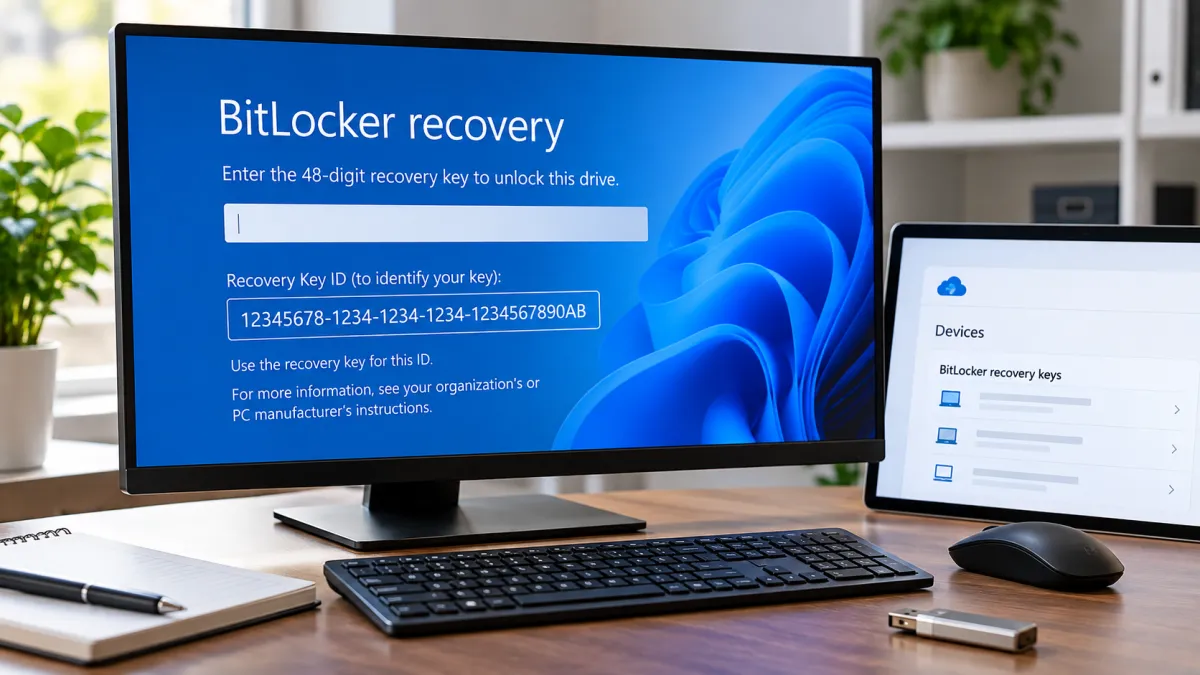
If Windows 11 suddenly asks for a BitLocker recovery key, you may be unable to access your files until you provide the correct 48-digit recovery key. The key is different from your Windows password, PIN, or the Recovery Key ID displayed on the screen.
The good news is that the recovery key is often saved automatically when BitLocker or Device Encryption is enabled. For many personal Windows 11 PCs, the first place to look is the Microsoft account associated with the computer. If someone else set up the PC, however, the key may be stored in that person's account instead.
The quickest approach is to write down the first eight digits of the Recovery Key ID shown on the BitLocker recovery screen, then look for a saved recovery key whose ID matches. The matching 48-digit key is what Windows needs.
What Is a BitLocker Recovery Key?
A BitLocker recovery key is a 48-digit numerical credential that can unlock a BitLocker-encrypted Windows drive when Windows enters recovery mode.
BitLocker is designed to protect data if someone attempts to access an encrypted drive outside the normal Windows startup process. Under certain circumstances, Windows may therefore require the recovery key before allowing the system to continue.
The request can be unexpected. You might have used the same computer for months without seeing it and then encounter the recovery screen after a hardware, firmware, or software change or another event that causes BitLocker to require additional verification.
The important thing is not to confuse the recovery key with credentials you normally use to sign in.
Your Windows PIN or password is used for your normal Windows account sign-in. The BitLocker recovery key is a separate recovery credential for the encrypted drive.
Microsoft's consumer support documentation refers to the 48-digit credential as the BitLocker recovery key. In some Microsoft technical documentation, you may also see the term recovery password for this 48-digit credential.
Recovery Key ID vs. BitLocker Recovery Key
One of the easiest mistakes to make is assuming that the Recovery Key ID displayed on the screen is the key you need to enter.
It is not.
The Recovery Key ID identifies the recovery key. The actual BitLocker recovery key is the 48-digit credential that Windows uses to unlock the encrypted drive.
Think of the ID as a way to match the right key when you have more than one saved recovery key.
For example, the recovery screen may show an identifier beginning with a particular sequence of digits. You should record the first eight digits of that Recovery Key ID before searching your saved recovery keys.
If your Microsoft account contains several BitLocker recovery keys, comparing the ID on the PC with the IDs associated with your saved keys helps you select the correct one.
Do not try to enter the Recovery Key ID as though it were the 48-digit recovery key.
Start With the Microsoft Account Associated With the PC
For a personal Windows 11 computer, the Microsoft account is one of the most important places to check.
Microsoft provides a recovery-key page where you can sign in and view BitLocker recovery keys associated with your account.
If you are looking at the BitLocker recovery screen, first record the first eight digits of the Recovery Key ID. Then, using another device if necessary, sign in to the Microsoft account associated with the Windows 11 PC and look through the available recovery keys.
The goal is to find the entry with the matching Recovery Key ID.
Starting with Windows 11 version 24H2, the BitLocker recovery screen can also provide a hint about the Microsoft account associated with the recovery key. This can be especially useful if you have more than one Microsoft account and are unsure which one was used.
When checking an account, do not simply look for a recovery key belonging to the right computer name and assume it is correct. Use the Recovery Key ID shown on the locked PC to confirm the match.
What If You Have More Than One Microsoft Account?
Having multiple Microsoft accounts can make the process confusing.
For example, you might have:
-
A personal Microsoft account you use for email
-
Another personal Microsoft account you used when setting up an older PC
-
A family member's Microsoft account
-
A Microsoft account that was used during the original Windows setup
If the recovery key does not appear in the Microsoft account you normally use, think about who originally set up the computer or enabled encryption.
Microsoft specifically notes that if someone else set up the device or turned on BitLocker, the recovery key may be stored in that person's Microsoft account.
This is particularly important for a family computer. The person currently using the PC does not necessarily have to be the person whose account contains the recovery key.
If another person originally configured the device, ask them to check their Microsoft account for a recovery key and compare its ID with the Recovery Key ID shown on your computer.
Check Whether the PC Uses a Work or School Account
A Windows 11 computer used for work or school can have its BitLocker recovery information associated with an organizational account rather than a personal Microsoft account.
This situation is different from a typical personal PC.
If the computer belongs to an employer, school, college, or other organization, the BitLocker recovery key may be managed through that organization's systems.
Microsoft provides organizational recovery options for supported work and school accounts. Depending on the organization's configuration, the recovery key may be available through the user's organization account or through an administrator.
If you have access to the organization's account, check the available device information and BitLocker recovery keys. Again, compare the Recovery Key ID with the identifier displayed on the locked PC.
If you do not have access to the organization's recovery information, contact the appropriate IT department or administrator rather than repeatedly trying unrelated passwords or recovery credentials.
This distinction matters because searching only a personal Microsoft account can lead you to conclude that the recovery key is missing when it may actually be associated with an organizational account.
Check Other Places Where You May Have Saved the Key
A Microsoft account is not the only possible location for a BitLocker recovery key.
Depending on how the device was configured and how the key was backed up, you may also have a copy in another location.
Check for:
-
A printed copy of the recovery key
-
A USB drive used to save the recovery information
-
A saved record kept with your computer documentation
-
A work or school account if the device is organization-managed
-
Another person's Microsoft account if that person configured the PC
Be careful when checking older records. If you have several Windows PCs, you may have recovery keys for more than one device.
This is why the Recovery Key ID is so useful. Rather than choosing a key based only on a computer name or your memory of when it was created, compare the identifier shown by the recovery screen with the identifier associated with the saved key.
How to Match the Correct Recovery Key
Once you have found one or more possible BitLocker recovery keys, matching the correct one is the critical step.
Use this process:
1. Record the Recovery Key ID
Look at the BitLocker recovery screen and note the first eight digits of the Recovery Key ID.
Write them down carefully.
2. Find your saved recovery keys
Check the Microsoft account, organizational account, printed records, USB drive, or other location where the key may have been backed up.
3. Compare the Recovery Key ID
If several recovery keys are available, compare their IDs with the ID shown on the locked PC.
The matching ID identifies the recovery key associated with that recovery request.
4. Use the 48-digit recovery key
Once you have identified the matching entry, use its 48-digit BitLocker recovery key at the recovery screen.
The ID itself is not the unlock credential.
5. Continue only with the matching key
If you have multiple keys, do not randomly enter keys simply because they belong to the same Microsoft account. Use the Recovery Key ID to identify the correct one.
This simple matching process can prevent a lot of unnecessary confusion when several computers or recovery keys are associated with the same account.
Why Is Windows Suddenly Asking for the Recovery Key?
BitLocker recovery is designed to respond to situations in which Windows determines that additional recovery authentication is needed.
A recovery request can occur after certain changes involving the computer's hardware, firmware, or software, or because BitLocker detects a condition that requires recovery.
That does not necessarily mean that your files have been damaged or that someone has successfully accessed your computer.
The recovery screen is part of BitLocker's protection mechanism.
For example, a significant change to the environment in which the encrypted drive normally starts can cause Windows to request the recovery credential before allowing access to continue.
The exact trigger can vary by device and configuration. If the recovery screen appears unexpectedly, the practical priority is to locate the correct recovery key rather than assuming the drive has failed.
If the computer was recently serviced, changed, or updated, it can also be useful to consider whether the recovery request appeared around the same time. However, the recovery screen itself is the important starting point because it provides the Recovery Key ID you need to identify the correct key.
Your Windows PIN or Password Is Not a Substitute
A common source of frustration is entering the normal Windows PIN or password and expecting it to unlock the BitLocker recovery screen.
That is not what the recovery screen is requesting.
Your Windows sign-in credentials and your BitLocker recovery key serve different purposes.
If Windows is specifically asking for the BitLocker recovery key, you need the appropriate recovery credential associated with the encrypted drive.
Similarly, the Recovery Key ID shown on the screen is not a replacement for the 48-digit key.
The recovery process becomes much easier once these three things are kept separate:
| Credential or identifier | Purpose |
|---|---|
| Windows PIN | Normal Windows sign-in |
| Windows account password | Account authentication |
| Recovery Key ID | Identifies the relevant BitLocker recovery key |
| 48-digit BitLocker recovery key | Used to recover access to the encrypted drive |
The most important distinction is between the last two. The ID helps you find the right key; the 48-digit key is the recovery credential.
What If the Recovery Key Is Missing?
If you cannot find the recovery key in your Microsoft account, do not immediately assume it has disappeared.
Work through the possible locations systematically.
First, check the Microsoft account that was used to set up the PC. If another person configured the computer, check whether the key may be associated with their account.
Next, determine whether the computer is connected to a work or school environment. If it is, the recovery key may be managed by the organization.
Then check any physical backups, including printed records and USB storage.
When several recovery keys are available, always compare the Recovery Key ID rather than choosing one at random.
If none of these locations contains the required recovery key, the situation becomes more serious.
Microsoft states that its support team cannot retrieve, provide, or recreate a lost BitLocker recovery key. BitLocker is specifically designed so that access to the recovery credential matters; Microsoft does not maintain a replacement copy that support can simply provide to you.
That means the recovery key should be treated as an important backup credential rather than something that can be recovered later on request.
Be Careful Before Resetting the PC
If you cannot locate the BitLocker recovery key, you may eventually need to consider Windows recovery options.
This is where it is important to distinguish a normal Windows reset from a BitLocker lockout.
Under normal Windows circumstances, Reset this PC provides options such as Keep my files and Remove everything. These options have different effects: the first is designed to preserve personal files while removing apps and settings, while the second removes personal files as well as apps and settings.
However, a BitLocker recovery situation is different.
Microsoft's BitLocker recovery guidance warns that if the recovery key cannot be found and the change that triggered recovery cannot be undone, resetting the device will remove the files on it.
Microsoft also notes that when an encrypted device is being reset from the Windows Recovery Environment, the BitLocker recovery key may be required to complete the reset.
For that reason, do not treat resetting Windows as a way to bypass the BitLocker recovery key while preserving access to encrypted files.
If the files on the computer matter, make every reasonable effort to locate the correct recovery key before proceeding with a reset or other destructive recovery option.
A reset may restore the ability to use the PC, but it is not a substitute for recovering an inaccessible BitLocker-encrypted installation.
What to Do If the PC Belongs to Someone Else
If the computer was purchased used, inherited from a family member, or originally configured by another person, the recovery key may not be where you expect.
The same principle applies: identify who originally configured the device and where the recovery key may have been saved.
For a family computer, the relevant key may be associated with another family member's Microsoft account.
For a work or school computer, the organization may control the recovery information.
For a previously owned PC, the situation can be more complicated because the recovery information may have been associated with the previous configuration.
The Recovery Key ID gives you an objective way to compare a candidate key with the recovery request instead of relying solely on the computer's name or your memory.
How to Protect Your Recovery Key for the Future
Once you regain access to the PC, take time to make sure the recovery key is properly backed up.
A recovery key is most useful when you can access it from somewhere other than the encrypted Windows installation that is currently locked.
Microsoft provides guidance for backing up BitLocker recovery keys, and available backup options can depend on the device and its configuration.
Possible backup methods include saving the key to a Microsoft account, saving it to supported removable storage, or keeping a printed copy.
The exact method is less important than having a reliable copy that you can access if Windows unexpectedly enters BitLocker recovery again.
If you maintain several Windows PCs, organize your recovery information carefully. Labeling records by the appropriate device and retaining the Recovery Key ID can make it much easier to distinguish one recovery key from another.
Do not store the only copy of a recovery key somewhere that depends on the same locked Windows installation. If the computer cannot start normally, you need a practical way to reach the backup from another device or physical record.
A Simple BitLocker Recovery Checklist
If you are currently looking at the BitLocker recovery screen, work through these steps in order:
-
Do not confuse the Recovery Key ID with the recovery key.
-
Record the first eight digits of the Recovery Key ID.
-
Check the Microsoft account associated with the PC.
-
If another person configured the PC, check their Microsoft account.
-
If it is a work or school PC, check the organization's recovery options or contact IT.
-
Check any printed recovery information.
-
Check USB storage or another approved backup location.
-
Compare the Recovery Key ID before selecting a 48-digit key.
-
Enter the matching 48-digit recovery key when prompted.
-
If the key cannot be found, avoid resetting the PC until you understand the potential consequences for the files on the encrypted drive.
This checklist keeps the process focused on finding the correct credential instead of trying unrelated Windows passwords or recovery options.
Conclusion
When Windows 11 asks for a BitLocker recovery key, the first priority is to identify the correct 48-digit recovery credential. The Recovery Key ID shown on the screen is there to help you locate and match that credential; it is not the key itself.
For many personal PCs, start by checking the Microsoft account associated with the device. If someone else configured the computer, check that person's account as well. Work and school computers may store recovery information through an organizational account. Printed copies and USB backups are also worth checking.
Most importantly, match the Recovery Key ID before using a saved key, especially if multiple recovery keys are available.
If the key cannot be found, be cautious about resetting the computer. A BitLocker lockout is not the same thing as an ordinary Windows reset, and Microsoft cannot recreate a lost recovery key. Once access is restored, make sure the recovery key is backed up somewhere you can reach even if the Windows installation becomes inaccessible again.
Frequently asked questions
Can I use the BitLocker Recovery Key ID to unlock my PC?
No. The Recovery Key ID is an identifier used to help you locate and match the correct BitLocker recovery key. The recovery key itself is the 48-digit credential used at the BitLocker recovery screen.
What if my BitLocker recovery key is not showing in my Microsoft account?
Check whether the PC was set up or encrypted using another Microsoft account, and check other approved backup locations such as a work or school account, printed copy, or USB drive. Match the Recovery Key ID shown on the PC with the available recovery key.
Could someone else's Microsoft account have my BitLocker recovery key?
Yes. If another person set up the PC or enabled BitLocker, the recovery key may have been saved to that person's Microsoft account. Ask that person to check their account and compare the Recovery Key ID with the one shown on your PC.
Why is Windows suddenly asking for a BitLocker recovery key?
BitLocker recovery can be triggered by a security event or by changes involving hardware, firmware, or software. The recovery screen is asking for the recovery credential associated with the encrypted drive.
Can Microsoft recover a lost BitLocker recovery key?
No. Microsoft Support cannot retrieve, provide, or recreate a lost BitLocker recovery key. You need to locate a copy that was previously saved or backed up.
What happens if I cannot find my BitLocker recovery key?
If the key cannot be found and the change that triggered recovery cannot be undone, Microsoft warns that resetting the device will remove the files on it. Do not assume that a normal Windows reset's “Keep my files” option means your encrypted files can be recovered from a BitLocker lockout.
How can I back up my BitLocker recovery key?
Use Windows' available BitLocker or Device Encryption recovery-key backup options to save the key to an approved location, such as a Microsoft account, USB drive, or printed copy, depending on the available options and device configuration.
Do I need the BitLocker recovery key to reset Windows 11?
1. If the device is encrypted, Microsoft says the BitLocker recovery key is required to complete a reset from the Windows Recovery Environment. The normal Reset this PC options distinguish between keeping personal files and removing everything, but that does not replace the recovery-key requirement for an encrypted device.

Maya Thompson writes practical technology content covering consumer technology, software, online services, digital tools, cybersecurity basics, and everyday technology decisions. She focuses on explaining technical topic...